

Clients
Manage client records, relationships, tasks, communication, documents, and trips.
Ghloria keeps client information connected to the rest of the agency workflow, so a client record is more than a contact. Each client holds profile data, an owner, trips, tasks, a communication log, relationships to other clients, and documents.
Client List
Open Clients in the sidebar for the agency's client base.
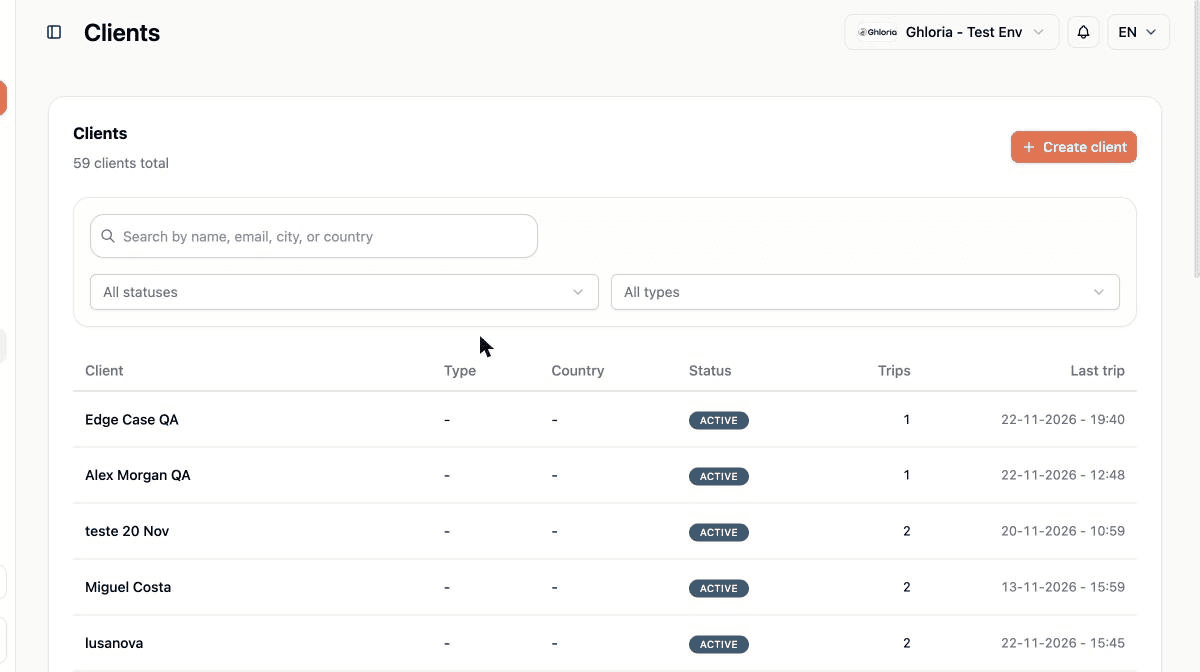
- Search by name, email, city, or country.
- Filter by type (Corporate, Leisure, or Agency) and by status (Active or Inactive).
- Sort the table and page through it. Your filters stay in the page address, so you can bookmark a view.
- Click a client to open its record.
The table shows each client's name, type, country, status, number of trips, and last trip date.
Creating a Client
Click Create client. Fill in:
- Name (required)
- Type: Corporate, Leisure, or Agency
- Email and phone
- Language
- Address, postal code, city, and country
Clients can also be created on the fly when you create a trip. See Trips.
The Client Record
The top of the record shows the client's logo or image, and its status (Active or Inactive). Quick actions let you:
- Send Email, which opens your default email application.
- Start a New trip for this client.
- Edit the ERP link, a link to the client's record in your own system.
- Delete the client, from the More actions menu (managers only).
Deleting a client deletes its work
Deleting a client permanently deletes the client and all associated trips and proposals. Only managers can do it, and it cannot be undone.
Client information
Click Edit to change any of the details:
- Name, legal name, commercial name, and contact name
- Email, phone, mobile, fax, and website
- VAT number, language, and currency
- Address, postal code, city, and country
- Client type, status, and owner: the workspace member accountable for the client
- Gender and date of birth, for individual clients
Use Other contacts to add more people at the client, each with an optional role.
Tabs
| Tab | What it holds |
|---|---|
| Trips | The client's trips, with proposal counts and values. Search, filter by status, and sort |
| Tasks | Tasks linked to this client, including ones tied to a trip or proposal |
| Communication | The log of calls, emails, meetings, and messages |
| Relations | How this client relates to other clients |
| Documents | Files stored on the client |
| Notes | Free-text background about the client |
Tasks and follow-ups
Ghloria flags clients that need attention: a task is overdue, a sent proposal is waiting for a follow-up, no contact has been logged recently, or an open trip has no next step. These also feed the To do card on your dashboard.
Communication
Use Log contact to record an interaction:
- Channel: call, email, meeting, WhatsApp, or other.
- Direction: outgoing, incoming, or a note.
- The trip it relates to, the person you spoke with, a subject, and a summary of what was discussed and decided.
- For emails, attach the message itself: choose it from Outlook, or upload an email file (
.emlor.msg, up to 25 MB). - Schedule next follow-up creates a task with a due date.
Proposals you send are logged here automatically. The same log is available on each trip.
Relations
Link a client to another client and say how they are related, for example Spouse, Parent of, Sibling, Other family member, Employee, Partner, Board member, Director, Area Director, or President. It helps you see families and company contacts together.
Documents
Upload and organise client files in categories. You can search documents, create categories, move a document between categories, download it, or delete it. You can also drop a document anywhere on the client page to add it.
Access
Everyone who works with clients can create and edit them. Deleting a client is limited to managers. See Roles and Permissions.