

Exporting and Sharing Proposals
The export panel: a shared image gallery, branded emails, PowerPoint decks and proposal websites, in five languages, all generated from the same proposal data.
Ghloria turns your structured proposal into client-ready materials. Every export is generated from the proposal data inside Ghloria, so itinerary, stays, flights and pricing stay consistent whether the client receives an email, a presentation or a website.
Unified source of truth
Save your latest itinerary, accommodation and budget changes before exporting so every output reflects the current proposal.
The Export Panel
In the proposal editor, click Export. The panel lists three export methods under Export method. The first time you open it, a three-step guided tour points them out. Turn tours off with Show tutorials in your profile settings.
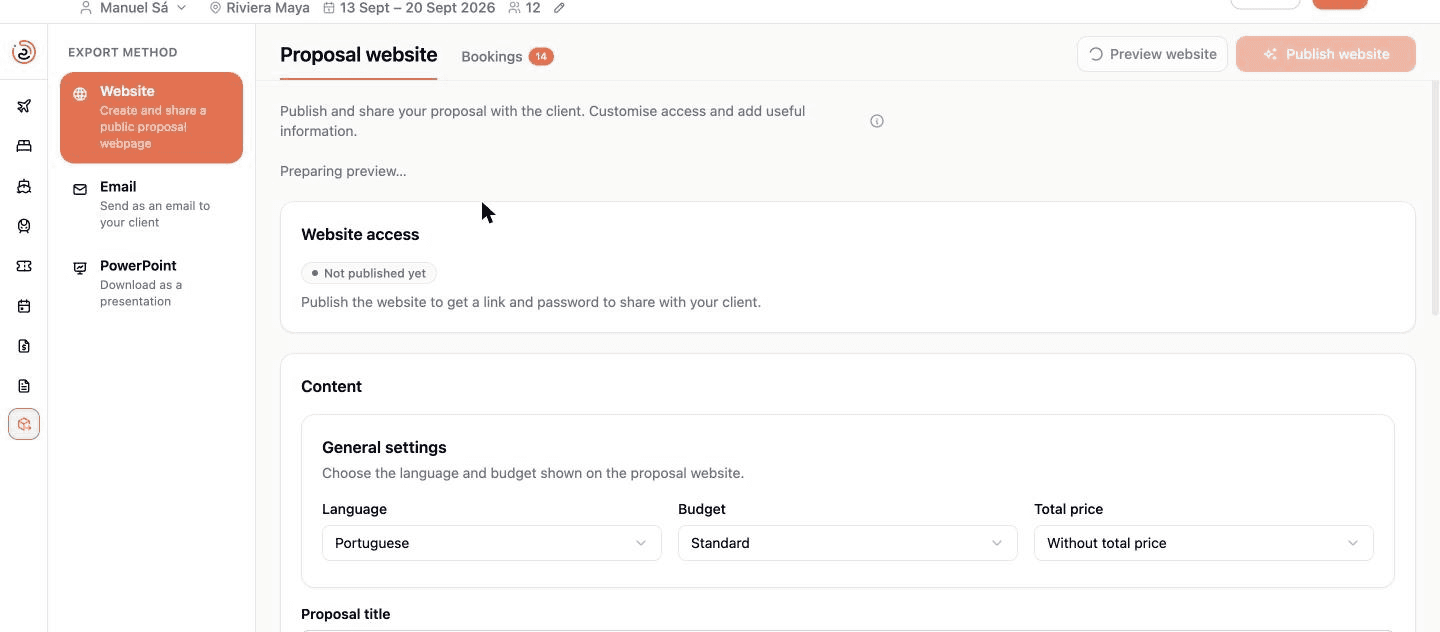
| Method | What it does |
|---|---|
| Send the proposal as a branded email to your client. | |
| PowerPoint | Download the proposal as an editable .pptx presentation. |
| Website | Create and share a public proposal webpage. See Proposal Website. |
Each method has General settings for template, language and budget view: Standard, Budget Scenarios or Traveler Groups. If traveller groups don't add up to the trip total, Ghloria warns you and continues with the current group counts.
Gallery: One Image Library For Every Export
The Gallery is the shared image library behind every export. Add images once, then decide in each export's own tab how they are used.
- Proposal cover: shared by the Email and PowerPoint exports. Choose it from available images, destination images or template images.
- Per-service libraries: every flight, hotel, cruise and extra has its own image library. Labels show whether an image is Used in PowerPoint or Used on website, and whether it is a company image or a Ghloria image.
- Finding what is missing: search items and filter to the ones that still need images. Use Fix to complete an item that is missing images.
- Saving: changes save automatically and can be undone. If someone else changes the images at the same time, Ghloria shows the latest version.
A hotel or cruise needs a name before images can be added to it.
Exporting In Five Languages
Proposals can be exported in Portuguese, English, Spanish, French and Italian, independently of the language you use in Ghloria. Pick the language in General settings.
When the export language differs from the language the proposal was written in, Ghloria translates the proposal content for the preview and the final output. The preview shows Awaiting translation… while this runs. If translation is unavailable, the preview uses the original text and says so.
The greeting message is not translated
The greeting message in a PowerPoint or email is used exactly as written. Write it in the language of the export.
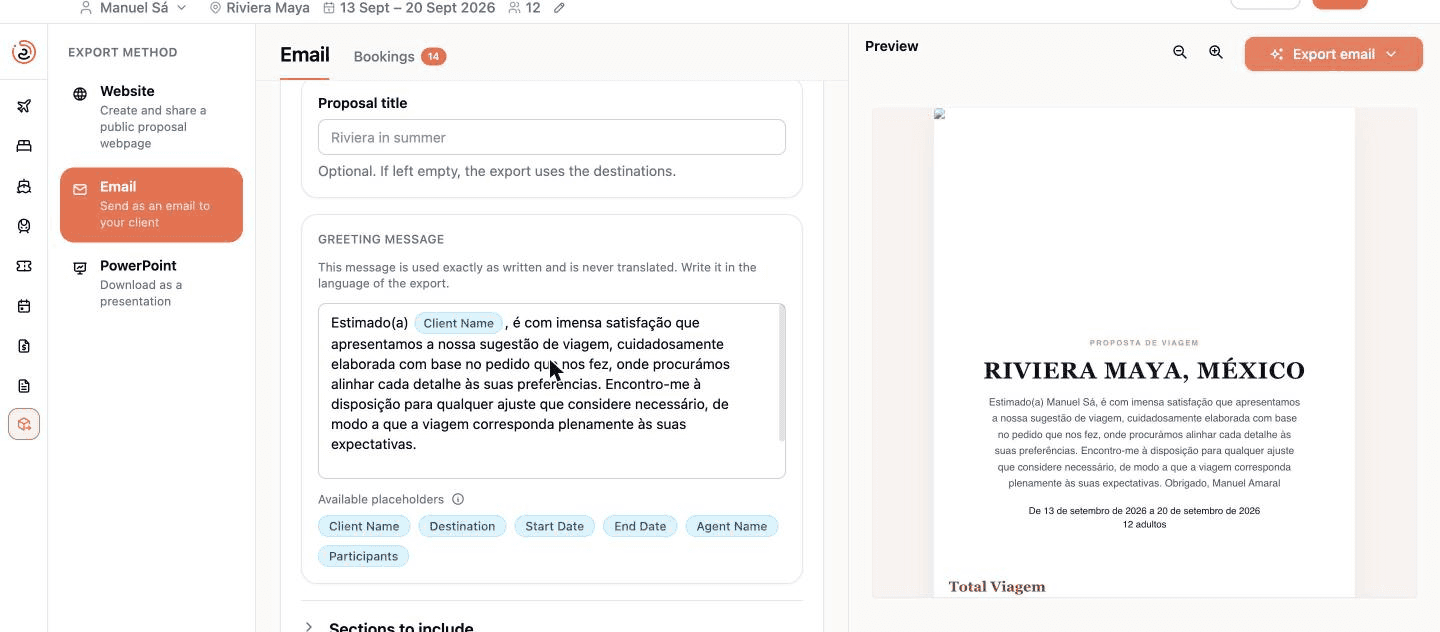
Choose Template, Language And Content
In General settings, set:
- Template: the email design, for example Default Email.
- Language: Portuguese, English, Spanish, French or Italian.
- Budget: Standard, Budget Scenarios or Traveler Groups.
- Total price: whether the price is shown. For example With total price or Without total price.
- Proposal title: optional. If left empty, the email uses the destinations.
Then write the Greeting message. It is used exactly as written and is never translated, so write it in the export language. Click a placeholder to insert it: Client Name, Destination, Start Date, End Date, Agent Name or Participants. The values are filled in from the proposal when the email is produced.
Under Sections to include, choose what goes in: cover image, greeting message, trip dates and travellers, flights, accommodation, cruises, transfers and extras, included and excluded services, total price, insurance, important notes and footer. The proposal cover is used as the Email image at the top.
Preview
Review the email in the in-app preview. The proposal cover is used at the top.
Send
Use Copy/paste email to copy the HTML into your email client, or Open in Outlook to open a draft directly. Outlook requires connecting your Outlook account in your profile settings.
PowerPoint
Choose PowerPoint under Export method to produce an editable .pptx deck. The panel has two columns: your settings on the left, and a live Presentation preview on the right, with zoom buttons and Export PPTX at the top. The preview shows Preparing preview… for a few seconds while the slides are drawn.
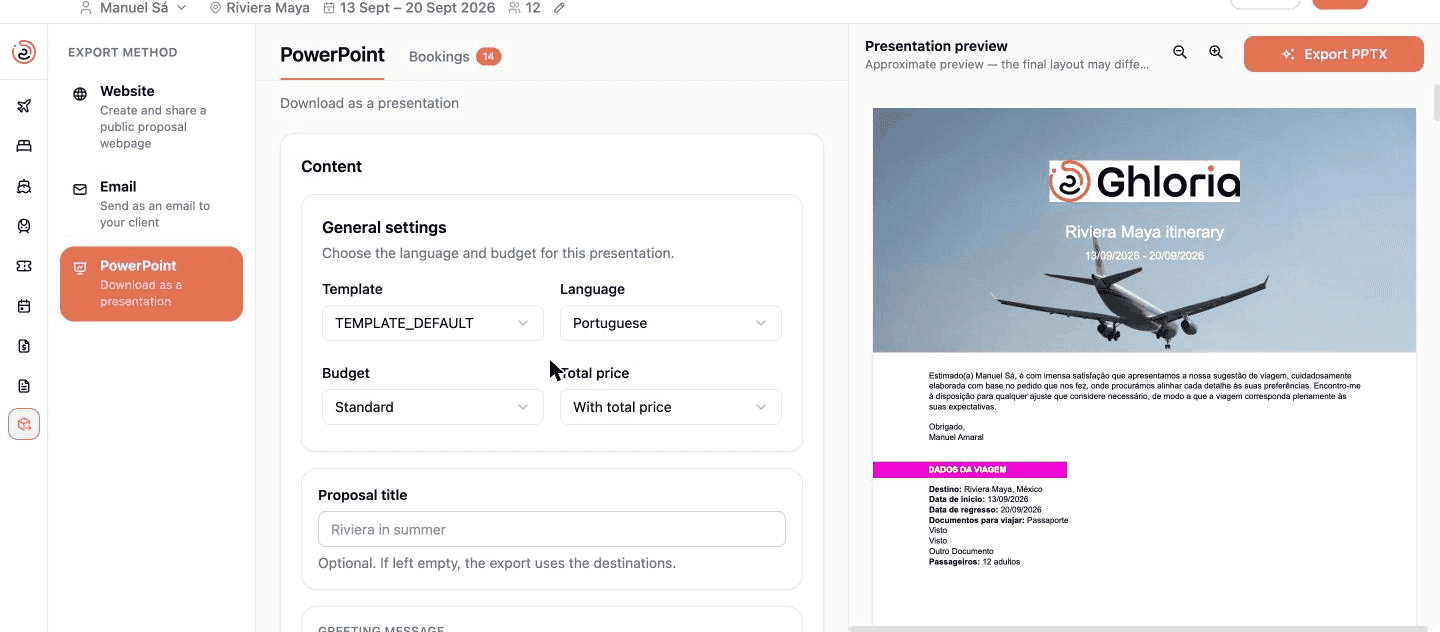
Choose The General Settings
Under General settings, set:
- Template: the company PowerPoint template. Templates are set up for your company by Ghloria, so you choose among the active ones, for example TEMPLATE_DEFAULT. If none is available, contact support@ghloria.com.
- Language: Portuguese, English, Spanish, French or Italian.
- Budget: Standard, Budget Scenarios or Traveler Groups.
- Total price: whether the price is shown. For example With total price or Without total price.
- Proposal title: optional. If empty, the deck uses the destinations.
Write The Greeting Message
Write the message that opens the deck. It is used exactly as written and is never translated, so write it in the export language. Click a placeholder to insert it: Client Name, Destination, Start Date, End Date, Agent Name or Participants.
Pick Presentation Images
Open Presentation images and choose one image for every flight, extra, accommodation and cruise in the presentation. The proposal cover becomes the cover slide.
Set The Appearance
Open Brand under Appearance. By default the deck uses your company's colour and font. To change them for this proposal:
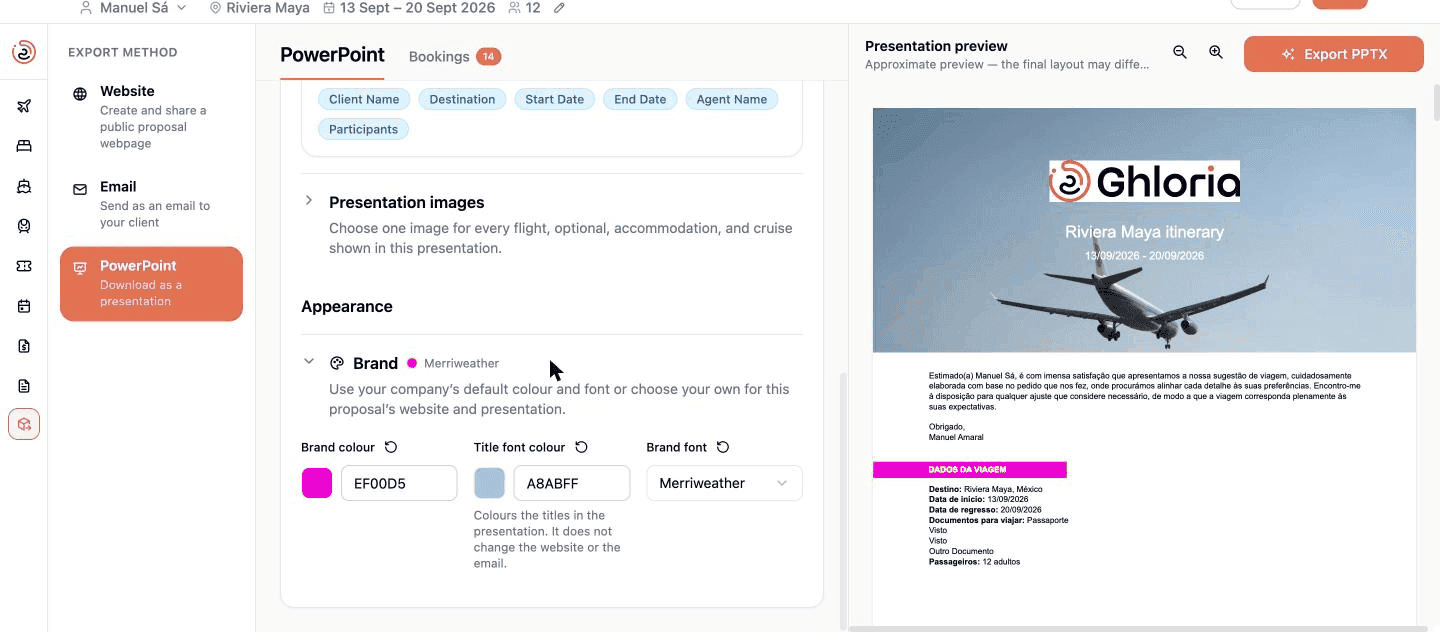
- Brand colour: type a hex code such as
EF00D5. - Title font colour: the colour of the slide titles. It does not change the website or the email.
- Brand font: choose the typeface.
The small reset arrow beside each field returns it to the company default.
Check The Preview
Scroll the preview to review each slide. Use the magnifier buttons to zoom. It is approximate: the final layout may differ slightly. The slides are built from the proposal itself, so to change what a slide shows, change the flight, stay, itinerary or budget it comes from and the preview updates.
Export
Click Export PPTX. Generation can take up to 2 minutes, and the file downloads automatically. Before sending the deck, confirm the exchange rate and the required documents that the slides show.
Delivery Tracking
Ghloria keeps an export activity log that records who generated each deck, email or website, so the team has full visibility. Track the commercial outcome with the proposal's status.
Bookings
Each export method has two tabs: the method itself and Bookings. Bookings tracks which services of the proposal version are confirmed with your suppliers.
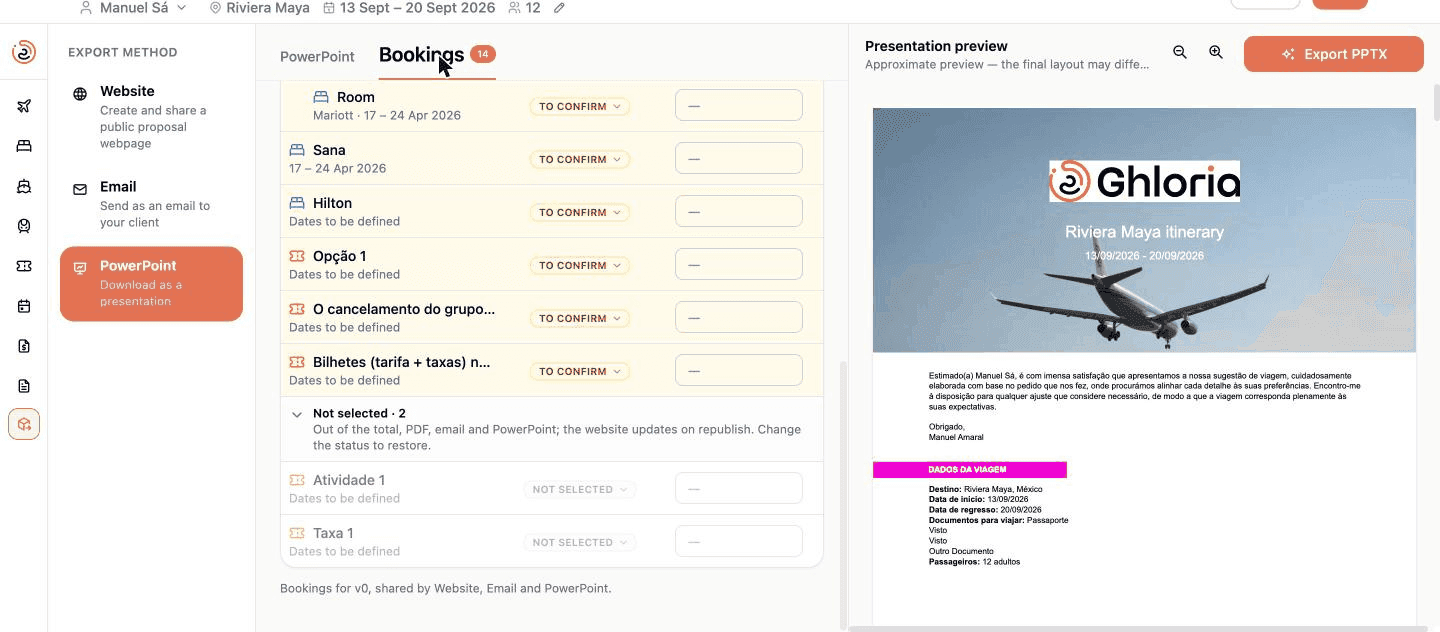
- The list shows every bookable service with its dates, a Ref. column for your supplier's confirmation code, and a status: To confirm, Requested, Confirmed, or Not selected. Click a status to change it, and use the filter to narrow the list.
- Confirm all marks every pending service as confirmed, and Mark all as to confirm reverses it. When a service changes after it was confirmed, it appears under Changed since confirmation until you click Confirm changes.
- Services marked Not selected drop out of the total, the PDF, the email, and the PowerPoint. The website updates on republish.
In each method, choose Export with bookings to let the client see each service as confirmed or to be confirmed. Tick Show booking references to include your suppliers' confirmation codes: in the email, or on the website behind its password. A published website updates by itself when you change a status.
Advanced Pricing: Scenarios, Groups and Options
Price one proposal for several group sizes, split costs between traveler groups, or offer the client a choice of options.
Proposal Website
Publish a proposal as a password-protected webpage that clients open on any device, with live sync status, version switching, client documents and PDF download.