

Trips
How trips work as operational containers for client travel plans and linked proposals in Ghloria.
A trip is the operational container for a client's travel plan. It holds the client record, the destination, the dates, and one or more proposals, which are the commercial workspace where pricing and itinerary live.
Use trips to keep all the commercial options for the same client travel plan in one place, even when you are working on multiple versions or alternatives.
The Trips List
Open Trips in the sidebar to see every trip you can access. The counter under the title reads, for example, 50 of 58 trips match the filters, and the table shows 50 trips per page.
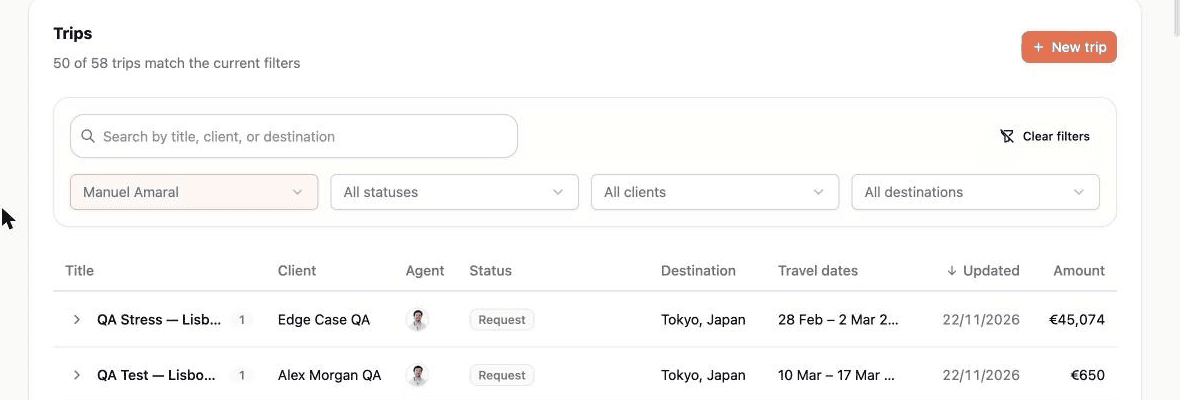
| Column | What it shows |
|---|---|
| Title | The trip's working title, with a small number beside it: how many proposals the trip holds |
| Client | The client the trip belongs to |
| Agent | The consultant responsible |
| Status | The status of the trip's proposals (see Trip Status) |
| Destination | One or more destinations, taken from the proposals |
| Travel dates | Start and end dates, or - when not set yet |
| Updated | When the trip last changed |
| Amount | The trip value (see Trip Value), or - when there is none |
Type in the search box (Search by title, client, or destination) or use the four filters above the table to narrow the list: Agent, Status, Client and Destination. They combine, so you can ask for "sold trips for this client". Click Clear filters to start again. Click any row to open the trip, and use New trip to start a new one.
If a filter returns nothing, the table says so instead of showing an empty page. Clear a filter to widen the search.
Trips vs Proposals
| Trip | Proposal | |
|---|---|---|
| What it is | The operational container for a client trip | The structured commercial offer inside that container |
| Holds | Client, destination, dates, tasks, communication, documents, linked proposals | Flights, accommodation, cruises, itinerary, extras, budget |
| Visibility | Internal: workspace only | Can be shared with the client through a proposal website |
| Count | One trip per client travel request | Many proposals per trip |
A single trip can contain multiple proposals, for example, one budget option and one premium option for the same Japan trip. Each proposal is edited independently, but they all belong to the same trip record.
Creating a Trip
Click New trip
Click New trip at the top of the sidebar, or New trip on the Trips page or the dashboard.
Fill in the form
- Trip title (required): a working title, for example "Japan Spring 2026" or "Morocco Honeymoon".
- Client (required): choose an existing client from the search, or enter a new client's name, email, and phone directly in the form. All proposals inside a trip belong to the same client.
- Language: the default language of the trip's proposals.
Create
Ghloria creates the trip and its first proposal, then opens the proposal editor so you can start building straight away. To see the trip itself, open it from Trips.
Trip Detail Page
The trip page is organised in five tabs:
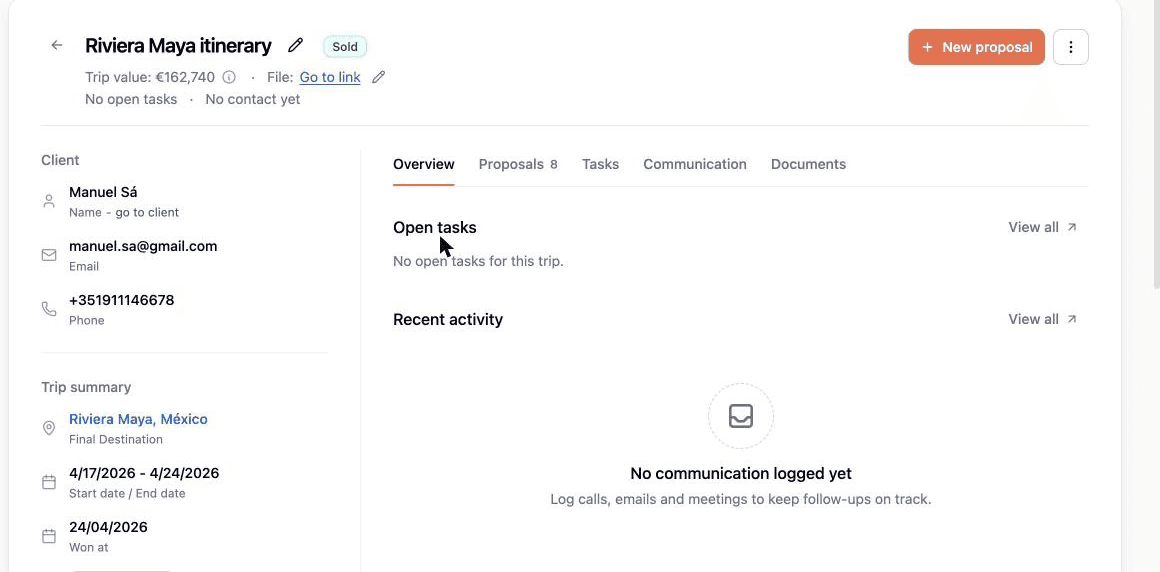
| Tab | What it shows |
|---|---|
| Overview | Open tasks, recent activity, and the trip's proposals with their statuses, each with a View all link to its tab |
| Proposals | Every proposal in the trip, with agent, destination, status, last update, and value. Click a row to open it |
| Tasks | Tasks for this trip, also available on the client's Tasks tab |
| Communication | The log of calls, emails, and meetings for this trip |
| Documents | Documents attached to the trip itself, separate from proposal-level files |
Tasks and Communication need a linked client. If the trip has none, Ghloria asks you to link one first.
At the top of the page, New proposal adds a proposal to this trip, Connect proposals links existing ones, and Delete trip removes it (see below).
The Trip Header
At the top of the trip page you can:
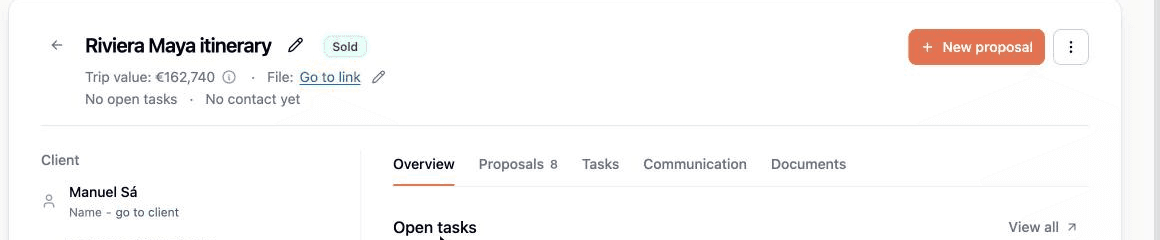
- Rename the trip: click the pencil next to the title, type the new name and confirm.
- Read the status badge: it shows the status of the trip's proposals, for example Sold.
- See the value: Trip value (or Potential trip value) sits under the title. Hover the info icon for how it is calculated.
- Link the trip's file: the File field holds a web address, for example the trip's file in your booking or accounting system. Click the pencil, paste the address, and confirm with the tick (or cancel with the cross). Once saved, it shows as a link that opens in a new tab.
- Check the summary line: under the title, a short line tells you whether the trip has open tasks and whether any contact has been logged.
- Start another proposal: New proposal adds a proposal to this trip.
Adding Documents
Drag a document anywhere on the trip page. Ghloria asks what to do with it:
- Create a proposal from this document: starts a new proposal and imports the document into it. The trip needs a linked client.
- Add document to trip: saves it in the trip's Documents tab.
Trip Value
The value shown on the trip page and in the trips list is the average of the open proposals in the trip. It is labelled Potential trip value while the trip is open. Once at least one linked proposal is Sold, the label changes to Trip value.
The number reflects commercial intent, not a confirmed booking amount, until a proposal is sold. Trips whose proposals are Lost or Annulled show no value.
Connecting Proposals to a Trip
Use Connect proposals on the trip page to select proposals from the same client. The list shows which proposals are already in this trip, and which belong to another trip or none.
A proposal can only belong to one trip at a time. Connecting a proposal that sits in another trip moves it. The trip it leaves is kept, even if it ends up with no proposals.
You can also add a new proposal to a trip with New proposal, to present an alternative.
Trip Status
A trip has no status of its own. It shows the status of its proposals: Request, Pending client decision, Sold, Lost, or Annulled. To change it, change the status of the linked proposal. See Proposal Versions for how statuses move.
Deleting a Trip
Destructive action
Deleting a trip also deletes all proposals linked to it. This cannot be undone once confirmed.
- Consultants: choosing Request deletion creates a pending deletion request. The trip stays accessible, and the consultant can use Cancel deletion request at any time. Managers are notified through the bell in the header to approve or deny it. For more details, see Roles and Permissions.
- Managers: can delete trips directly or review the pending requests submitted by team members.
Duplicating a Proposal
To start a new trip from an existing proposal, duplicate it. Ghloria opens the New trip form with the proposal's title and language, and you choose the client. The proposal content is copied into the new trip's first proposal.