

The Proposal Page
A tour of the page you land on when you open a proposal: budget summary, versions, agent, trip details and client, and how to start editing.
Opening a proposal from the Proposals list, or from a trip, takes you to the proposal page. It is a read-first overview: you check the price, the version and the people involved, then choose whether to edit the version or create a new one. You build the proposal itself in the editor, which you open from here.
The Proposals List
Open Proposals in the sidebar for every proposal you can access, across all trips. It works like the Trips list: a counter such as 50 of 58 proposals match the filters, the same four filters (Agent, Status, Client, Destination) with Clear filters, and 50 rows per page.
Columns: Title, Client, Agent, Status, Destination, Trip dates, Updated and Value. Click a row to open the proposal, or New proposal to create one.
Trips or proposals?
Use Trips when you think in terms of clients and journeys. Use Proposals when you want to see every offer on its own, for example to find all proposals still waiting for a client decision.
What The Page Shows
The page has two columns. On the left are Proposal summary and Client information. On the right are Budget summary, Version information and the list of versions. The steps below follow the order you will usually read it in:
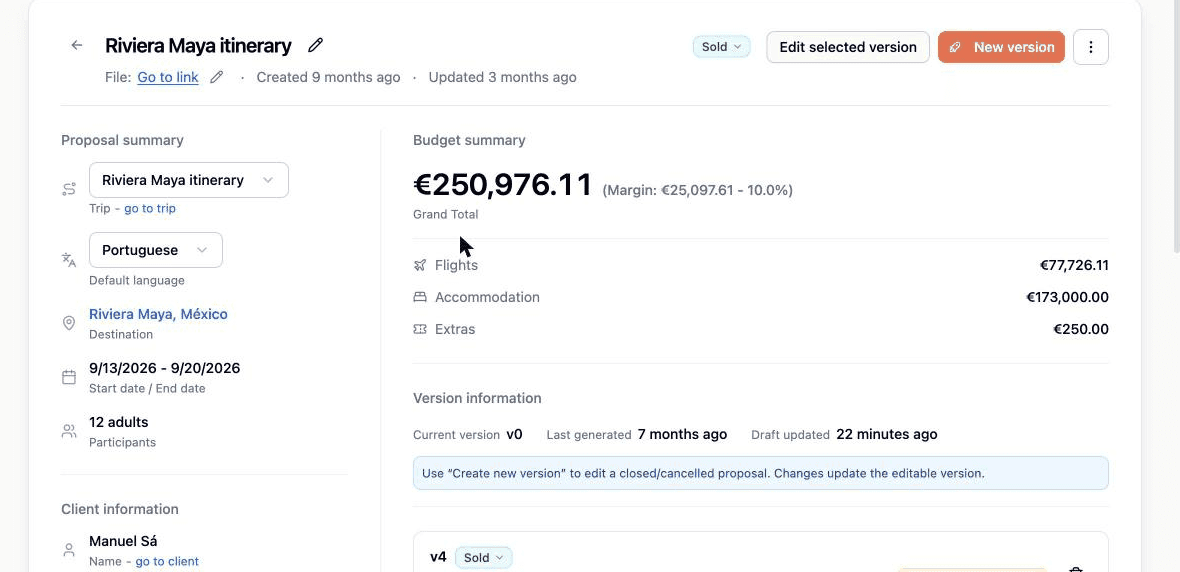
Title, status and actions
The back arrow returns to the previous list. Click the pencil to rename the proposal. The status badge (Request, Pending client decision, Sold, Lost or Annulled) opens the status menu, see Proposal Versions. Under the title you find the File link, and when the proposal was created and last updated.
The two buttons on the right are the main actions:
- Edit selected version opens the editor on the version you have selected.
- New version creates a new version of the proposal.
Budget summary
The Grand Total is the final price, with the margin in value and percentage beside it. Below it, the price is split by category: Flights, Accommodation, Extras and Cruises. It is a summary only: to change a price, open the editor and use the Budget tab, see Budget basics.
Version information
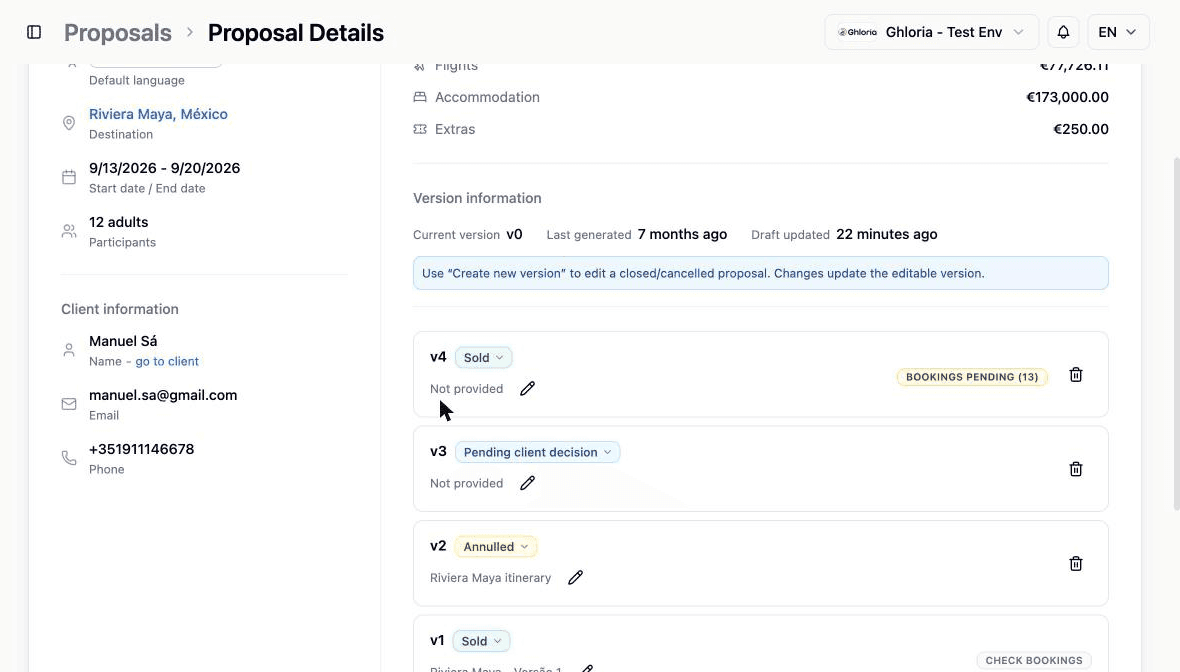
Shows the Current version (for example v1 (Generated)), when it was Last generated, and when the Draft was updated. Below, each version appears as a card with its status and an internal note you can edit with the pencil.
Agent information
The name and email of the consultant the client should contact. Change it in the editor's Agent tab.
Proposal summary
- Trip: the trip this proposal belongs to. The drop-down lets you move the proposal to another trip, and go to trip opens it.
- Default language: the language used for the proposal and its exports.
- Destination, Start and end date and Participants (for example 4 travelers, 2 adults, 2 children).
Client information
The client's name, email and phone. Go to client opens the full client record.
Edit Or Create A New Version?
| Situation | Do this |
|---|---|
| The proposal is still a draft and nobody outside the agency has seen it | Edit selected version |
| The client has already received this version | New version, so the original stays on record |
| You want to try an alternative without losing the current one | New version, or duplicate a version, see Managing versions |
Locked versions
A version marked Sold or Lost cannot be edited. Revert its status to Pending client decision first, or create a new version.
If The Editor Does Not Open
If you see Failed to load proposal, use Back to proposals, reopen the proposal and try again. Your saved work is not affected. If it keeps happening, contact support@ghloria.com with the proposal's name.
How to Create Travel Proposals & Trip Itineraries
Learn how modern travel agencies and DMCs build, organize, and export client-ready travel proposals, itineraries, and trip budgets with Ghloria.
The Proposal Editor
A tour of the editor where you build a proposal: the header, the tabs, saving, importing and the More actions menu.