

Tasks
Create, filter and complete tasks and follow-ups for clients, trips and proposals.
Tasks keep follow-ups from slipping: call a client who has not replied, confirm a booking, send a document. Open Tasks in the sidebar for the full list. The dashboard's To do card shows the most urgent ones, see Dashboard.
The Task List
The list is grouped by status. To do comes first, followed by Done. Each group shows how many tasks it holds, and the arrow beside the name collapses or expands it.
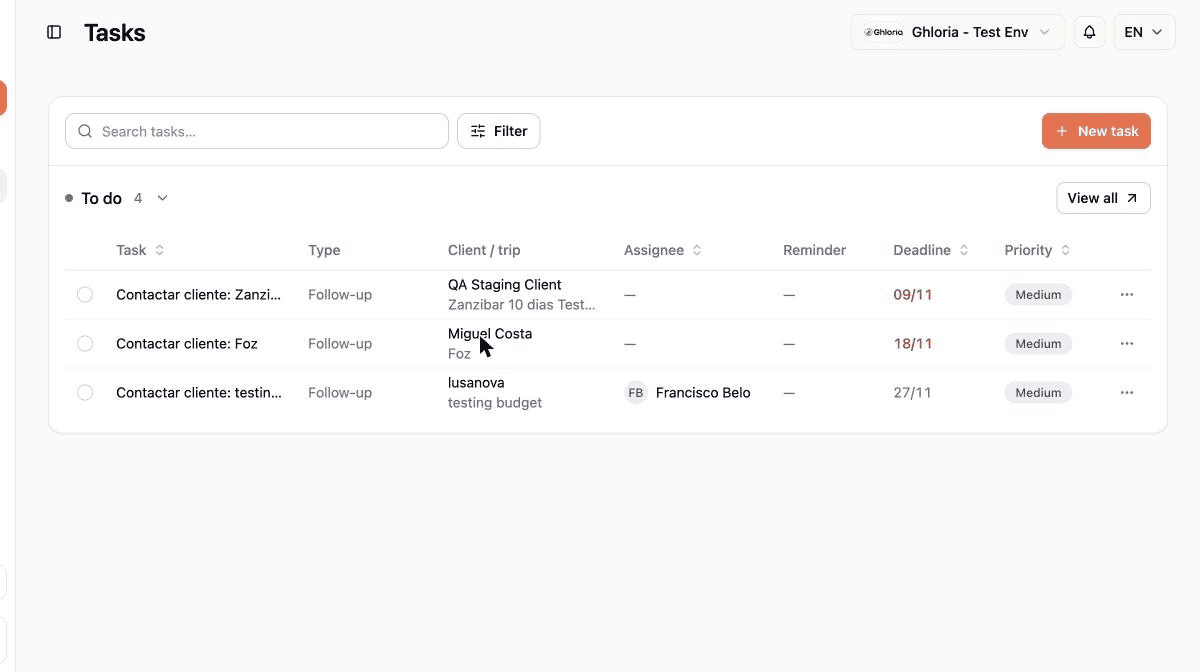
| Column | What it shows |
|---|---|
| Checkbox | Click it to mark the task as complete. Click it again on a completed task to reopen it |
| Task | The task's title, for example Contact client: Foz |
| Type | The kind of task, for example Follow-up |
| Client / trip | The client and trip the task is linked to |
| Assignee | Who is responsible |
| Reminder | When you will be reminded, if set |
| Deadline | The due date. Overdue tasks show the date in red |
| Priority | High, Medium or Low |
| Actions (…) | Edit the task, change its status, or delete it |
Click a column heading to sort. Type in Search tasks to find a task by its text. View all beside a group lists only that status.
One click completes a task
The checkbox acts at once. If you tick one by mistake, expand the Done group and untick it.
Creating A Task
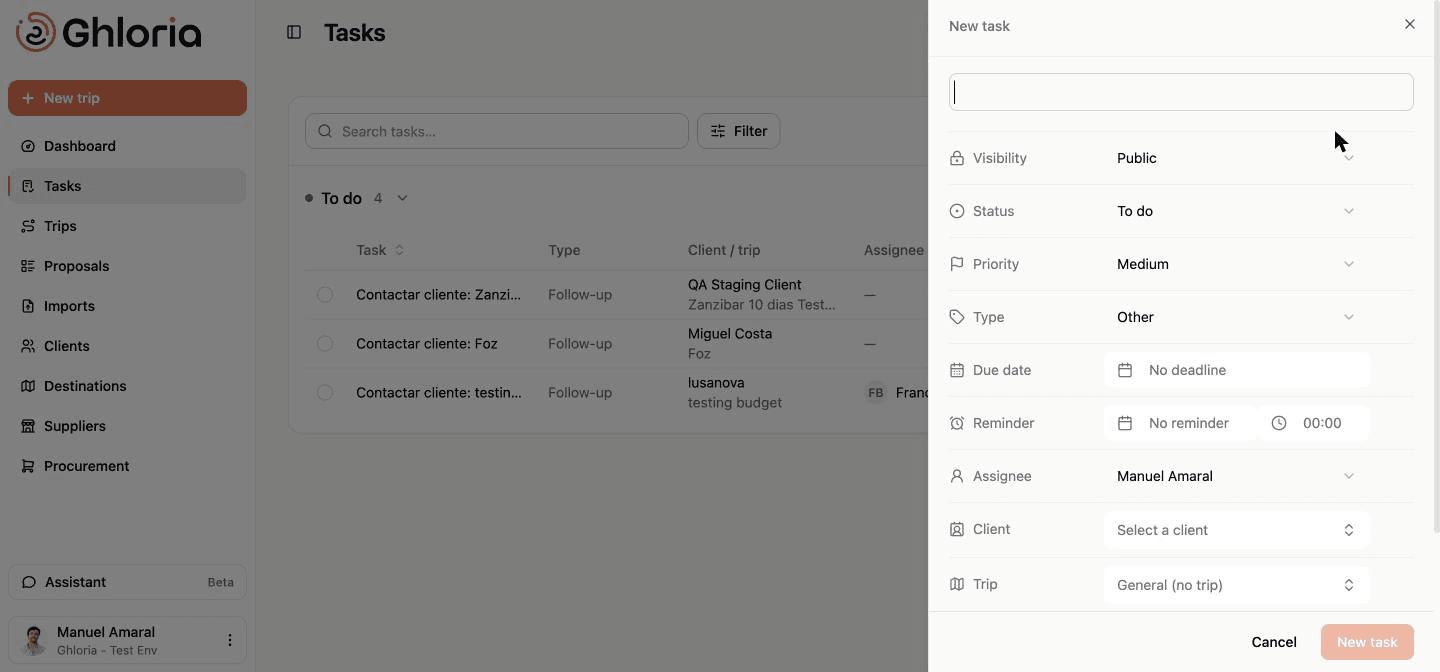
Click New task
Use New task at the top of the list, or on the dashboard. The window reads Record general tasks or link them to clients, trips and proposals.
Describe the task
Type the title in Add task…. Use the notes field for context or next steps.
Set the details
| Field | Options |
|---|---|
| Visibility | Public (the team can see it, the default) or Private |
| Status | To do by default |
| Priority | High, Medium (default) or Low |
| Type | The kind of task. The default is Other |
| Due date | A date, or No due date |
| Reminder | No reminder, or a reminder with a time of day |
| Assignee | Who is responsible. It defaults to you |
Link it to the work
Choose a Client, a Trip and, if needed, a specific proposal under Scope / proposal. With no trip it stays a general task. Linked tasks also appear on the client's and trip's Tasks tabs.
Save
Click New task to create it, or Cancel to leave without saving.
Filtering And Grouping
Click Filter to open View and filters. Reset returns everything to the default view.
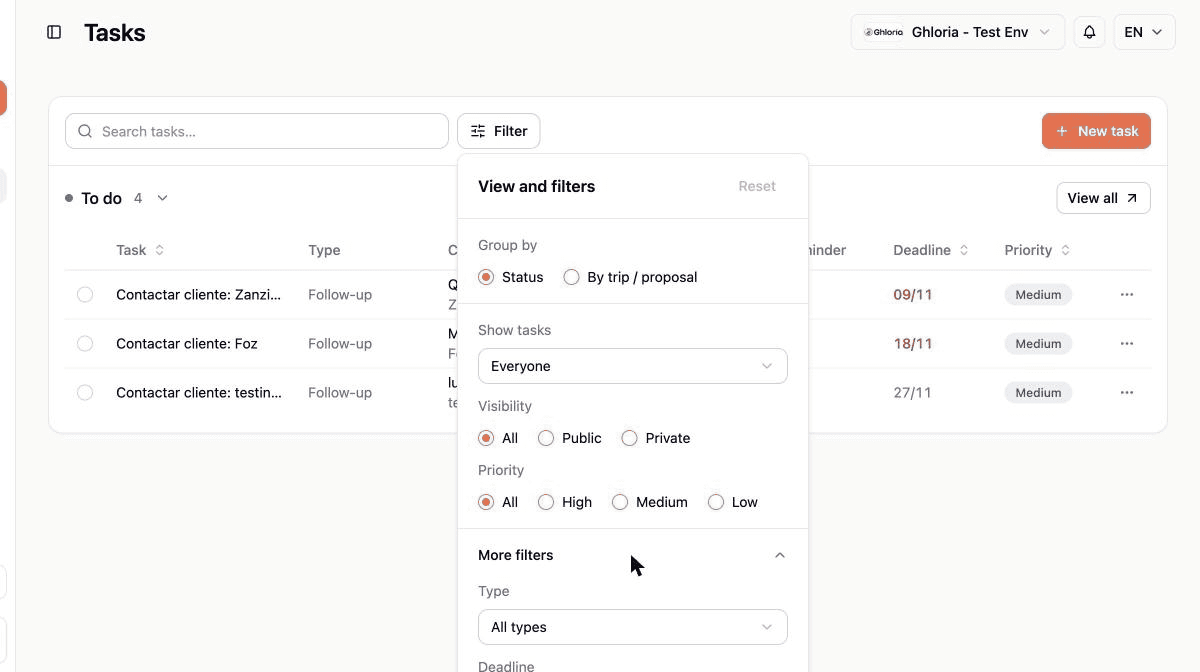
- Group by: Status (the default) or By trip / proposal.
- Show tasks: whose tasks to list, for example Everyone. The team option depends on your role, see Roles and Permissions.
- Visibility: All, Public or Private.
- Priority: All, High, Medium or Low.
- More filters: Type (default All types) and Deadline.
Filters can be combined, for example High priority, due this week.
Good Habits
- Give every task a due date, so it shows up on the dashboard when it matters.
- Link tasks to the client or trip, so the history stays with the record.
- When you move a proposal to Pending client decision, accept the offer to schedule a follow-up, see Proposal Versions.