

Budget Basics
A practical guide to the Budget tab: how prices flow in from your services, how to set costs, markups and margin, and when to use scenarios, traveler groups, alternatives and packages.
The Budget tab turns the services in a proposal into a selling price. It looks dense at first because it brings together every flight, stay, cruise, extra and imported document in one table. Most proposals only need a few of its controls, though. This page covers those. Scenarios, traveler groups and options have their own page, Advanced pricing.
How The Budget Works
Three ideas explain almost everything on this tab:
- Services feed the budget. You don't type services into the budget. Flights, stays, cruises and extras come from their own tabs, and imported supplier documents come in with their prices. The budget is where you price them.
- Every price is net + markup. Each line has a net cost (what you pay the supplier) and a markup (your profit). Markups can be set line by line, or calculated by Ghloria to hit a target margin for the whole proposal.
- One base budget, optional structures on top. The base budget is the proposal's price. Pricing scenarios, traveler groups, alternatives and packages are optional layers that reuse the same services instead of copying them.
Offering the client a choice?
To let the client choose between two hotels, or between a Classic and a Premium version of the trip, go to Budget Structure.
Price A Proposal In Five Steps
Add Services In Their Own Tabs
Fill in the Flight, Accommodation, Cruise and Extras tabs, or import supplier documents. Each service appears in the budget under its category.
Check The Net Costs
In the budget table, enter or confirm the net price of each line and its cost mode (see below). Untick any line that should not count towards the total.
Set Your Margin
In the budget summary, enter a Target margin. Ghloria spreads the markup across every line that doesn't have its own markup. Or set a markup on specific lines yourself.
Apply Discounts If Needed
Add fixed or percentage discounts. The summary shows the total before discount, the discounts and the Final price.
Review And Export
Check the Proposal summary, which is the figure used for export, then download the budget as a PDF or move on to exporting the proposal.
Reading The Budget Table
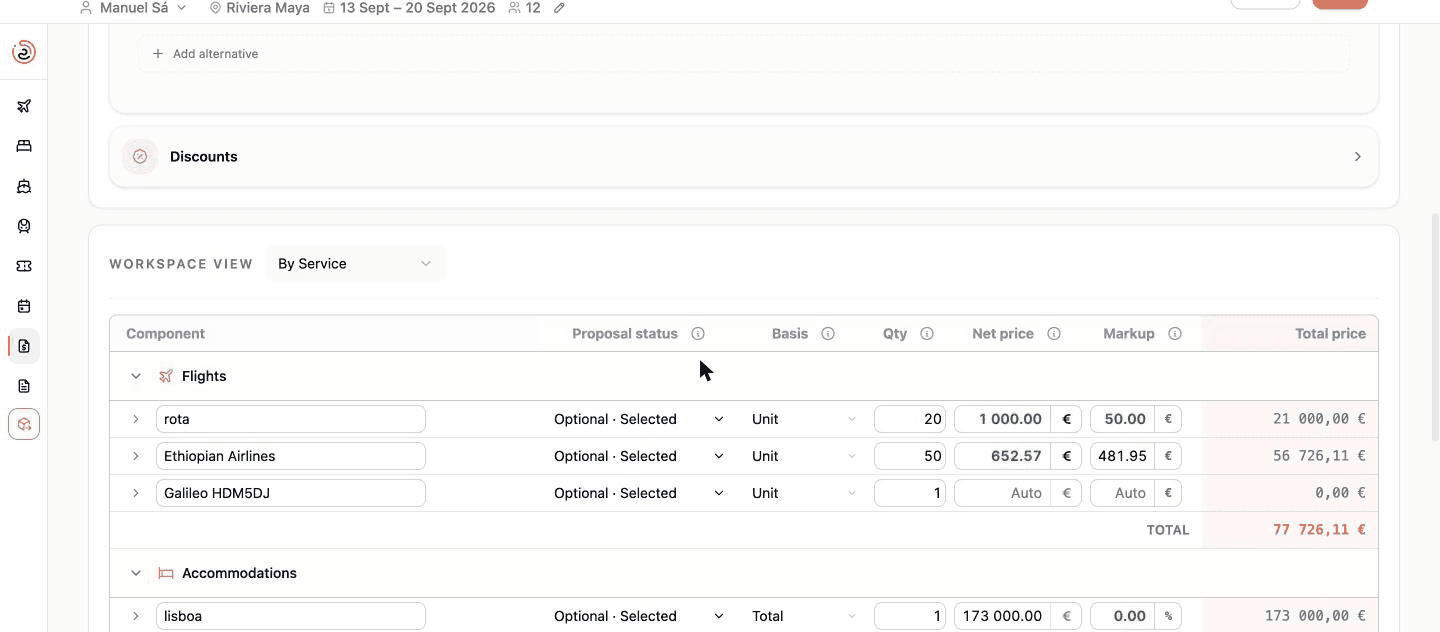
Views
Switch between four views at the top of the table. Views only change how the budget is presented, not the numbers.
| View | Best for |
|---|---|
| Summary | The final price at a glance, with totals per traveler group, package and scenario. |
| By Service | Pricing work: every service grouped by category (Imported Documents, Flights, Accommodations, Cruises, Extras). |
| By Day & Service | Checking the budget against the itinerary, day by day. |
| Packages | Comparing packages side by side (only when you use Packages and have created some). |
In By Day & Service, services without a date appear as Unscheduled, and days with nothing booked show as Free day. Under Accommodation distribution, choose whether a stay's cost sits on its check-in day (Consolidated on check-in) or is spread over its nights (Distributed by nights). You can drag rows between days, and Reset to service date puts a row back on its service's date.
Parent And Child Rows
Services are nested: a flight group contains its segments and legs, a stay contains hotels and rooms, and a cruise contains its cabins. Expand a row to see its children.
- By default, a parent's price is the sum of its children.
- If you type a price on the parent, for example a package rate for a whole stay, that price takes over and the children are locked to it. Their assignment shows "Set by the manually priced parent".
- Clear the parent's price to go back to the children's prices.
Included Or Not
The Proposal status column on each line decides whether it counts in the calculated budget:
| Status | What it means |
|---|---|
| Base | Included and not optional for the client. It is part of the budget and the client can't turn it off. |
| Optional · Selected | A service the final client may choose to keep or drop, but that you are proposing, so it is part of the budget. |
| Optional · Not selected | An optional service that is not selected, so it is not part of the budget. The client can choose to add it on the proposal. |
Deselected lines stay visible with their price struck through, so you can still see their cost.
Cell Colours
| Colour | Meaning |
|---|---|
| Green | A value you edited by hand, overriding the automatic calculation. |
| Navy | A value you can edit. |
| Grey | A value you can't edit here, for example a parent total calculated from its children or an excluded line. |
Costs: Choosing The Cost Mode
Each line has a cost mode that tells Ghloria how to turn the price you enter into the line total:
| Cost mode | Line total | Example |
|---|---|---|
| Total | The price as entered, whatever the number of travellers. | A private transfer for the whole group: €300. |
| Unit | Price × quantity (travellers or units). | A museum ticket at €25 per person × 6 = €150. |
| Total /night | Price × number of nights. | A villa at €800 per night × 5 nights = €4,000. |
| Unit /night | Price × quantity × number of nights. | A room at €150 per person per night × 2 × 4 nights = €1,200. |
The per-night modes are only available on stays, hotels, rooms and cruises that have dates. A parent whose price comes from its children shows a locked Total badge.
Why the cost mode matters for scenarios
In pricing scenarios, Unit lines scale with the number of travellers and Total lines stay fixed. Set the cost mode correctly and scenario prices are right automatically. See Advanced pricing.
Markup And Margin
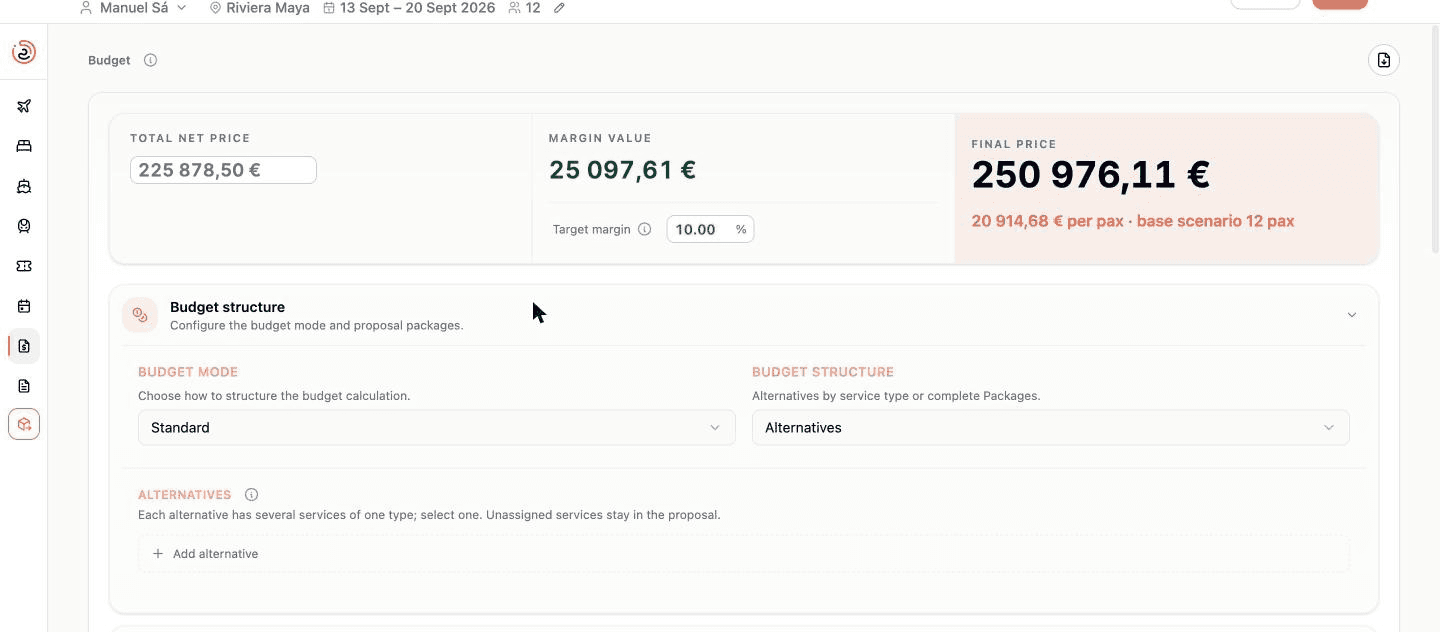
Markup On A Line
Each line's markup can be a Percentage or a Flat fee:
- Calculated (Auto): the line has no markup of its own and receives its share of the target margin.
- Manual: you set the markup on this line. It is kept as entered and is not changed by the target margin.
Use manual markups for lines with fixed commercial rules, such as a ticketing fee on flights. Leave everything else on automatic.
Target Margin
The budget summary shows:
| Field | What it is |
|---|---|
| Net price | The total cost of all included lines. |
| Margin value | Total price minus net price. |
| Target margin | The net margin you want on the proposal, from 0 to 99.9%. |
| Total price | The selling price before discounts. |
| Discounts | The sum of all discounts. |
| Final price | What the client pays. |
When you set a target margin, Ghloria keeps your manual markups, then spreads the remaining profit across the lines on automatic markup so the whole proposal hits the target.
Worked example. A flight costs €1,800 with a manual €200 fee. A hotel costs €1,200 on automatic markup. Total net is €3,000 and the target margin is 15%.
- Selling price needed: €3,000 ÷ (1 − 0.15) = €3,529
- Profit needed: €3,529 − €3,000 = €529
- Already covered by the flight fee: €200
- Left for the hotel: €329, a 27.4% markup on €1,200
The final price is €3,529: exactly a 15% margin.
Margin is not markup
Margin is profit ÷ selling price. Markup is profit ÷ cost. A 15% margin needs a 17.6% markup, and a 15% markup only gives a 13% margin.
Overriding The Totals
You can type a Net price in the summary to override the calculated cost. The budget then shows "The budget summary has been manually edited". Clear the Net Price field to go back to automatic calculation. A manually set grand total can be reset with Reset to standard budget total.
Discounts
Add discounts in the Discounts section. Each discount has a name, a type (Fixed or %) and a value, and you can switch each one on or off with Use.
- Fixed discounts take a set amount off.
- Percentage discounts apply one after another to the remaining subtotal. Two 10% discounts on €1,000 give €810, not €800.
- The summary shows the applied amount of each discount and the final price.
- Discounts belong to the proposal and apply in every view. Each scenario, package and group applies them to its own total before discount, so a group's discount can differ from the base proposal's.
Foreign Currencies
When an imported supplier document is in another currency, it appears under Imported Conversions with its origin currency, destination currency and Rate.
- If the rate is still 1:1, Ghloria reminds you to enter the real exchange rate. A link to Google Finance helps you check it.
- After changing a rate, click Update to reprice the linked lines.
- Lines whose price you edited by hand keep that price. Conversion no longer applies to them.
Scenarios, Groups And Options
To quote several group sizes, split costs between families, or let the client choose between hotels, see Advanced pricing. The base budget on this page stays the single source of services and net costs.
Summary Cards And Export
The cards at the top of the tab summarise the budget: price per person, the scenario table, groups and packages. Hide them with Hide summary cards. Hiding a single card only lasts for the current session and deletes nothing.
The Proposal summary shows the final pricing and is marked Used for export. The budget mode and structure you choose on this tab decide how this pricing appears in the PDF, PowerPoint, email and website, so the proposal shows the same budget everywhere. Use Download PDF for a printable budget.