

Suppliers
The supplier directory: categories, supplier pages, contacts, operating areas, platform accounts, ratings, proposals, documents, and images.
Suppliers is your agency's directory of the companies, places, and services you work with: hotels, airlines, transfer companies, tour operators, restaurants, and more. It combines Ghloria's shared catalog with your own notes, contacts, and documents, so each supplier has one record the whole team uses.
Supplier List
Open Suppliers in the sidebar.
- Search by name.
- Filter by category, type (company, person, place, asset, or service), and by proposals (with or without).
- Some categories are hidden by default. Click Show all categories to see them.
- Click an entry to open its page.
The counter above the table shows how many entities the directory holds. The table shows each entry's name, category, type, destination, rating, number of proposals, and source.
Adding a Supplier
Click New entity at the top of the list. Each entry in the directory is called an entity, and a supplier is one kind of entity. The form (Create a company entity that appears in suppliers) asks for:
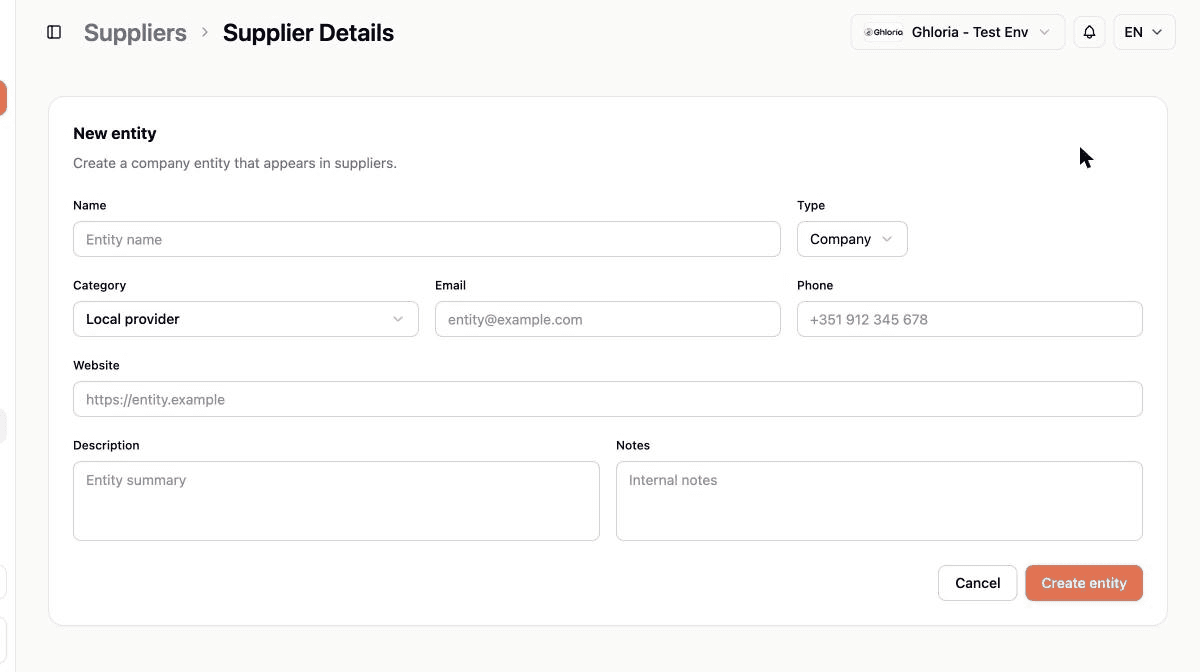
| Field | What to enter |
|---|---|
| Name (required) | The supplier's name, for example the hotel or airline |
| Type | The kind of entity: for example Company, or a place or an asset such as a ship. The default is Company |
| Category | The role it plays, such as Local provider, hotel or airline. The default is Local provider |
| Email, Phone, Website | Contact details, if you have them |
| Description | A short summary of the supplier |
| Notes | Internal notes for your team |
Click Create entity to create it, or Cancel to leave. The new entry appears in the directory for your whole agency, and you can add contacts, documents and platform accounts on its page afterwards.
The Supplier Page
The page shows the supplier's logo and images next to five tabs.
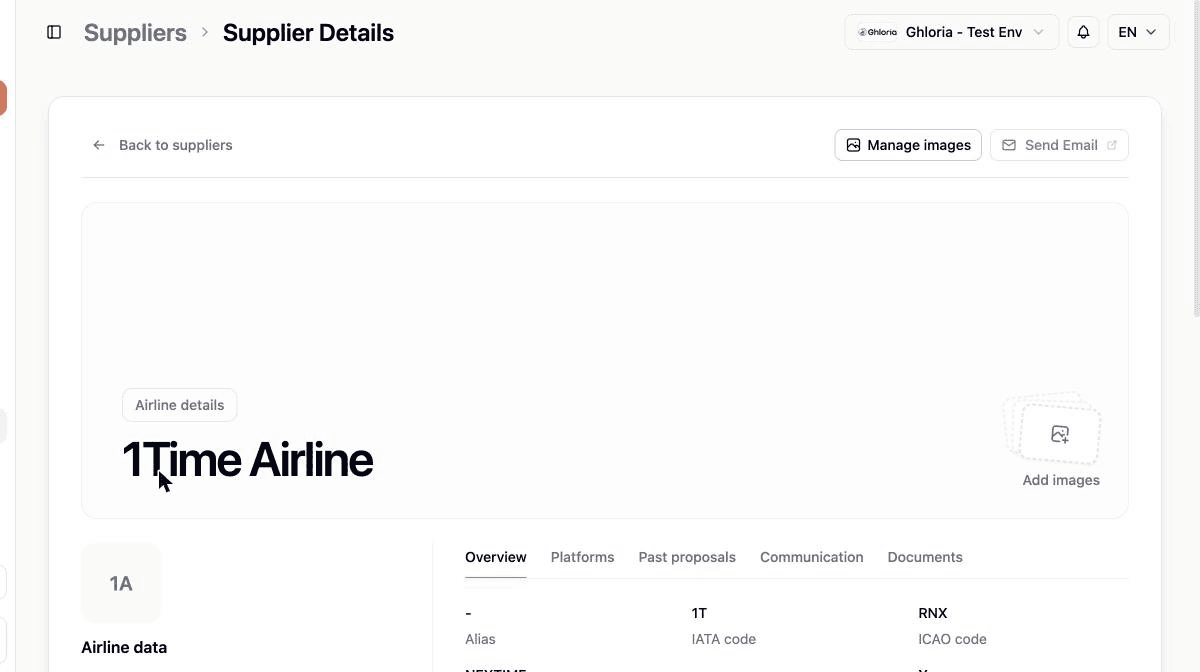
| Tab | What it holds |
|---|---|
| Overview | Details that depend on the category, such as a hotel's check-in and check-out times and amenities, plus your own description and notes |
| Platforms | The portals and logins you use with this supplier |
| Past proposals | Every proposal that uses a service from this supplier |
| Communication | The log of calls, emails, and meetings with the supplier |
| Documents | Files for the supplier relationship, such as contracts, rate sheets, and product sheets |
Click Edit on the supplier to change its details, category, type, and logo. Changing the category removes records that no longer apply, and Ghloria lists them for you to confirm first.
Overview sections
- Contacts: the people and channels at the supplier, each with a position, emails, and phones. Names are optional.
- Operating areas: where the supplier says it operates, across all its services. It is a record of coverage, not live availability, and an empty list means nothing has been recorded.
- Vehicle types: the types of vehicle a transport supplier offers. They describe types, not fleet size or availability.
- Internal rating: give the supplier up to five stars and a note on what went well. Only your agency sees it, and it shows the date of the last review.
Platform accounts
On the Platforms tab, keep supplier portal logins in one place: a label, the website, the username, and the password. Anyone with access to your company can save and reveal passwords, so only store accounts the whole team may use.
Preferred suppliers
You can mark your preferred suppliers for each destination from the destination's Local suppliers tab. See Destination Detail.
Deleting a Supplier
Click Delete company details in the More actions menu. This removes your agency's saved details for the supplier and cannot be undone. The shared catalog information stays available.
Supplier Images
Each supplier has an image library used by proposals and exports. Open Manage images to add and organise photos. Besides uploads and Google photos, the Website tab reads the supplier's own website and shows the photos it finds. Click a photo to add it to the supplier's images.
The supplier needs a website on its profile first. Some websites can't be read automatically. In that case, use Google photos or upload images yourself.