

The Proposal Editor
A tour of the editor where you build a proposal: the header, the tabs, saving, importing and the More actions menu.
The editor is where a proposal gets built. You open it with Edit selected version on the proposal page, or by creating a new trip. Everything for one version lives here: the journey details, the services, the itinerary, the price and the export.
The Header
The header stays visible while you work.
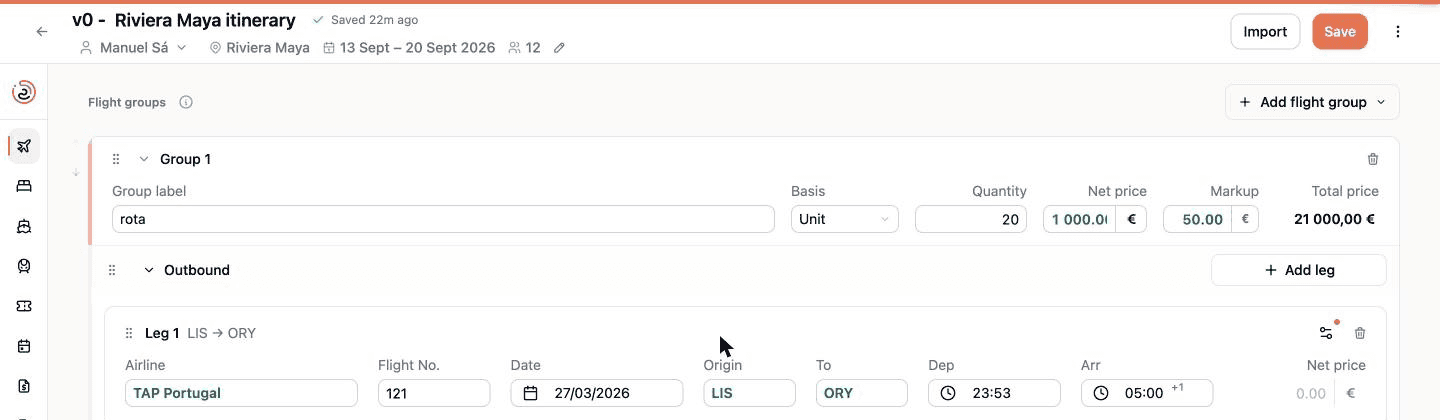
| Element | What it does |
|---|---|
| Back arrow | Returns to the proposal page. |
| Version and name | For example v0 - Riviera Maya itinerary. The version number tells you which version you are editing. |
| Save status | Saved 11:17 PM means your latest changes are stored. Ghloria saves as you work, and Save forces an immediate save. |
| Client | A drop-down with the proposal's client. Change it to attach the proposal to another client. |
| Destination, dates and travellers | A summary of the journey. Click the pencil to edit it (see below). |
| Import | Reads a supplier document, email or Galileo itinerary into the proposal. See Import documents. |
| Save | Saves the draft now. |
| More actions (⋮) | Try the new builder (plan the trip day by day, with every service on one canvas) and Clean data (empties the proposal, so use it with care). |
Editing The Trip Details
Click the pencil beside the destination, dates and travellers to open Edit trip details:
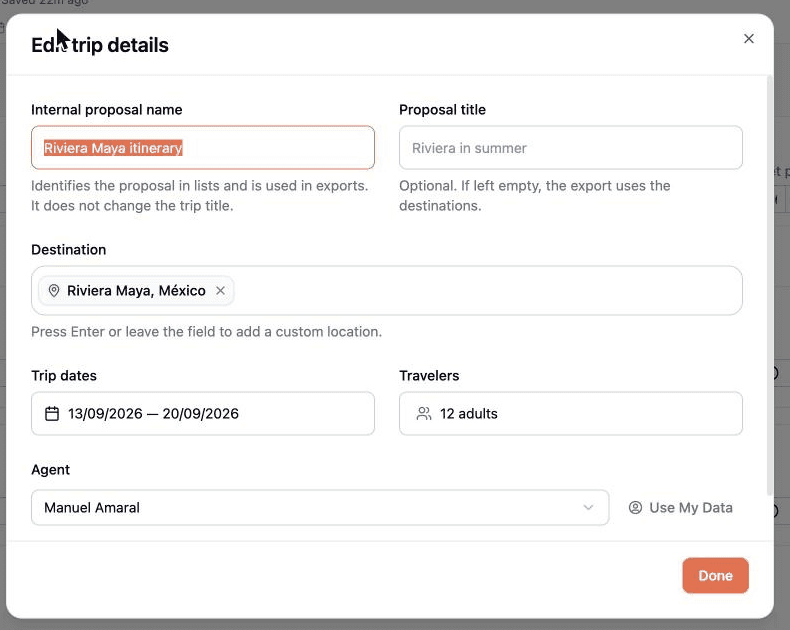
- Internal proposal name: identifies the proposal in your lists and exports. It does not change the trip's title.
- Proposal title: optional. If you leave it empty, exports use the destinations as the title.
- Destination: choose from the location catalog. To add a place that is not in the catalog, type it and press Enter. You can add several destinations for a multi-city journey.
- Trip dates: start and end. The end date must be on or after the start date.
- Travelers: the number of adults and children. Pricing scenarios and traveller groups build on this number, see Budget basics.
- Agent: the consultant the client should contact. Click Use My Data to fill in your own details, then check the Email / Phone.
Click Done to apply the changes, or Close to leave without applying.
The Tabs
Use the icon rail on the left of the editor. Hover an icon to see its name.
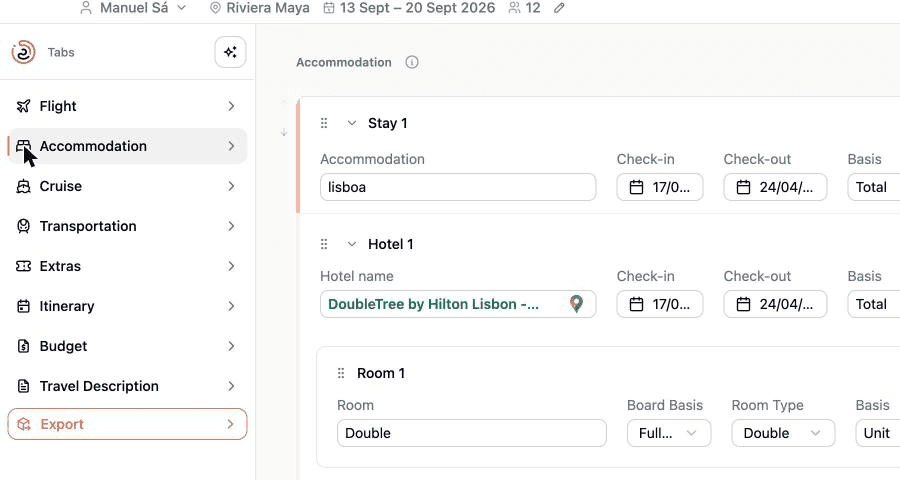
| Tab | Use it to |
|---|---|
| Flight | Build flight groups, with routes, segments and legs. |
| Accommodation | Add stays, hotels and rooms. |
| Cruise | Add cruises and cabins. |
| Transportation | Add transport groups for ground and other transport. |
| Extras | Add activities, tours, transfers, restaurants, tickets and other services. |
| Itinerary | Plan the days and attach points of interest. |
| Budget | Price everything, set margin and discounts. |
| Travel Description | Write what is included, what is not, insurance, required documents and notes. |
| Export | Preview and send the proposal as a website, email or PowerPoint. |
You can link straight to a tab: the address of the editor ends in tab=budget, tab=description and so on, so a colleague can open the same tab you are on.
Travel Description
This tab holds the written part of the offer. Each section opens with Expand:
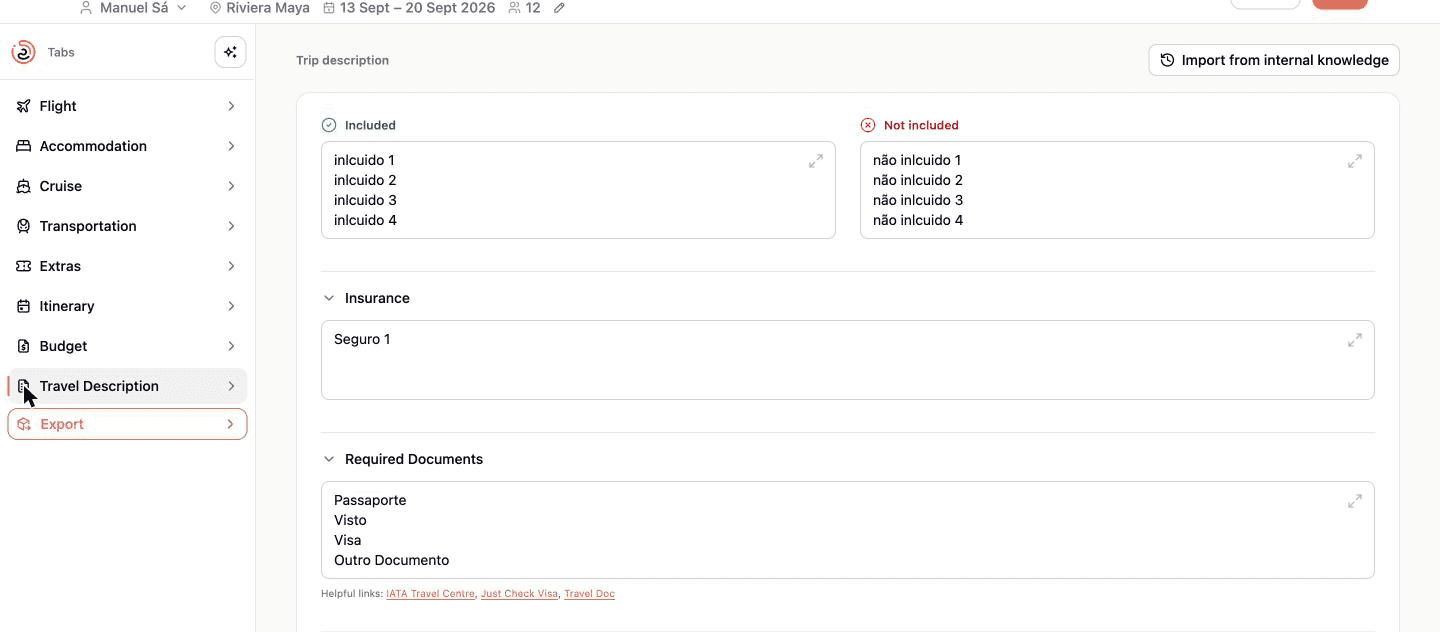
- Included and Not included: what the price covers and what it does not.
- Insurance: the travel insurance information for the client.
- Required documents: passports, visas and vaccinations. A line of useful links (IATA Travel Centre, Just Check Visa, Travel Doc) helps you check the rules for the destination. This section is for your team.
- Important notes: points the client must know.
- Consultant notes: internal notes that clients never see.
Import from internal knowledge pre-fills the text from the notes your agency keeps on the destination, see Destination detail.
Working Safely
- Changes to a generated version are blocked. Open the editable version, or create a new one, see Proposal Versions.
- A version marked Sold or Lost is locked until you change its status.
- If the editor says it could not load the proposal, go back to the proposals list, reopen it and try again. Saved work is not lost.