

Inviting Team Members
How to add new members to your Ghloria workspace and manage the team.
Ghloria workspaces are invite-only. Only Managers can send invitations. New members join through an email link and complete a one-time account setup before accessing the platform.
Sending an Invitation
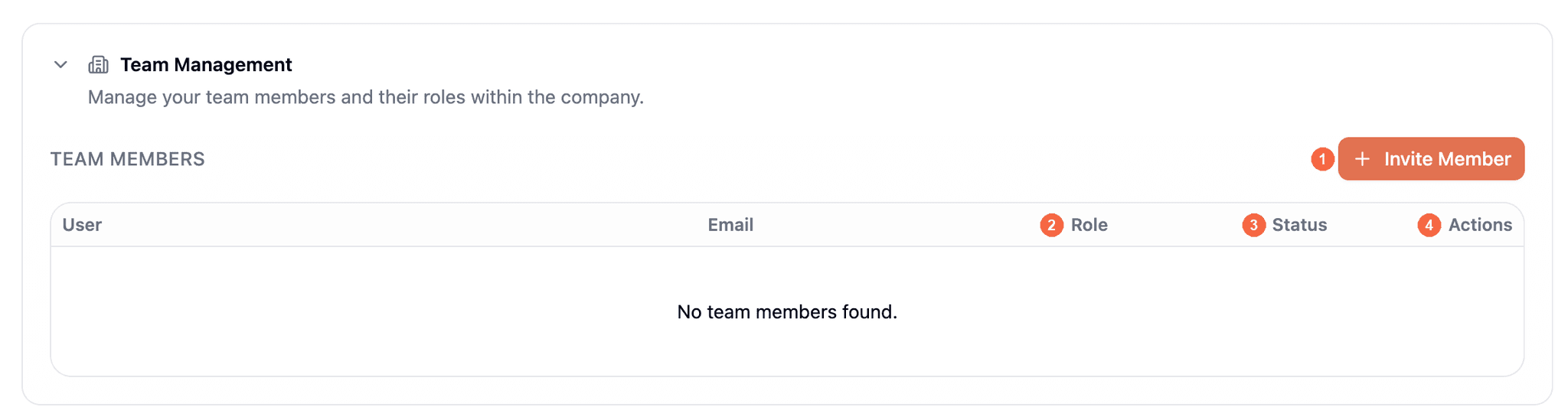
- Invite Member opens the invitation form.
- Role: Manager or Consultant.
- Status: Active members have joined; Invited members have a pending invitation.
- Actions: the row menu (...) on each member has Remove and Copy Email.
The example above is a workspace with no members yet. Yours lists each member with their name, email, role and status.
Go to Settings → Company → Team Management
Open Settings from the navigation and select the Company tab. The Team Management section shows all active members and any pending invitations.
Enter the member's email
Click Invite Member and enter the email address. Email addresses are normalized (trimmed, lowercased) before the invite is sent. The invite form asks for the email only: every new invitee joins as a Consultant.
Confirm and send
Click Send Invitation. Ghloria sends an email with an Accept invitation link, and the invited member appears in the members table with an Invited status.
Email already has an account
An email address that already belongs to a Ghloria account cannot be invited, and you will see an error explaining why. Invite a different address, or ask the person to sign in with their existing account.
What the Invitee Receives
The invitee receives an email with an Accept invitation button and the date the invitation expires. When they click it:
- Ghloria validates that the email matches a pending invitation in the system.
- The invitee completes the account setup form: name and password.
- Their role and workspace assignment are set from the invitation, not from anything they enter during setup.
- After setup, they are signed in and directed to the workspace.
If the invitation link has expired, or has already been used, the invitee sees This link is not valid and is asked to request a new invitation or sign in. They need to ask a Manager for a new one. Ghloria never says whether the link was wrong, expired or used, so it can't be used to find out which email addresses have invitations.
Invite-only access
There is no self-signup flow. A valid, pending invitation is required to complete account setup. If someone tries to set up an account without a matching invitation, the setup page will redirect them to the login screen.
Managing Members After Joining
Managers manage the team from the same table.
| Action | How |
|---|---|
| Remove a member or pending invitation | Open the row menu, choose Remove, then confirm |
| Copy email | Open the row menu and choose Copy Email |
You cannot remove yourself, and you cannot remove the last Manager of a workspace. Changing a member's role is not available from this table; email support@ghloria.com.
Member removal
Removing a member revokes their access to the workspace immediately and cannot be undone. If the person belongs to other workspaces they keep access to those; otherwise their account is removed.
Re-sending an Invitation
The table has no resend action. If an invitee has not completed setup and the link no longer works, remove the pending invitation and invite the same address again.
Multi-Workspace Accounts
Managers who belong to more than one Ghloria workspace can switch their active company context using the company switcher in the navigation header. Each workspace has its own member directory, proposals, clients, and trips.