

Dashboard
How to read the Ghloria dashboard: pipeline cards, your to-do list, trip activity, the Outlook inbox, and recent trips.
The dashboard is the home view of your Ghloria workspace. It shows the state of your pipeline, what needs your attention today, and your most recent trips, without opening individual records.
The Header
The bar at the top of the page controls what the dashboard shows:
- Bell: opens your notifications. The number is how many are waiting.
- Time range: sets the period for the cards, chart and recent trips.
- Language: changes the language of Ghloria.
- Company: appears if you belong to more than one company. Use it to switch between them.
- Agents: appears if you can view the team. Use it to scope the dashboard to one consultant.
Pipeline Cards
The top row shows four cards for the selected time range:

| Card | What it measures | |
|---|---|---|
| 1 | Pipeline value | Total value of the trips pending client decision |
| 2 | Requests | Trips awaiting a proposal |
| 3 | Pending client decision | Trips whose proposal has been sent to the client |
| 4 | Sold | Trips marked as sold |
These cards follow the trip statuses used across Ghloria: Request, Pending client decision, Sold, Lost and Annulled.
To Do
The To do card lists what needs your attention now:

| Control | What it does | |
|---|---|---|
| 1 | Mine / Everyone | Switches between your follow-ups and the whole team's (team viewers only) |
| 2 | New task | Adds a task |
| 3 | View all | Opens the full Tasks page |
| 4 | Other follow-ups | Expands the follow-ups listed below |
What the card lists:
- Tasks due: tasks that are overdue or due today. Mark them done, snooze them (tomorrow, in 3 days, next week, or a date you pick), or open the task to edit it.
- Waiting for a reply: proposals sent to a client that have had no reply, with the number of days since they were sent.
- No recent contact: clients with no logged contact for a while, including clients never contacted.
From a follow-up row you can click Log contact to record a call, email, or meeting. Client and trip names link straight to their pages.
The Everyone option is only available to users who can view the team.
Trip Activity
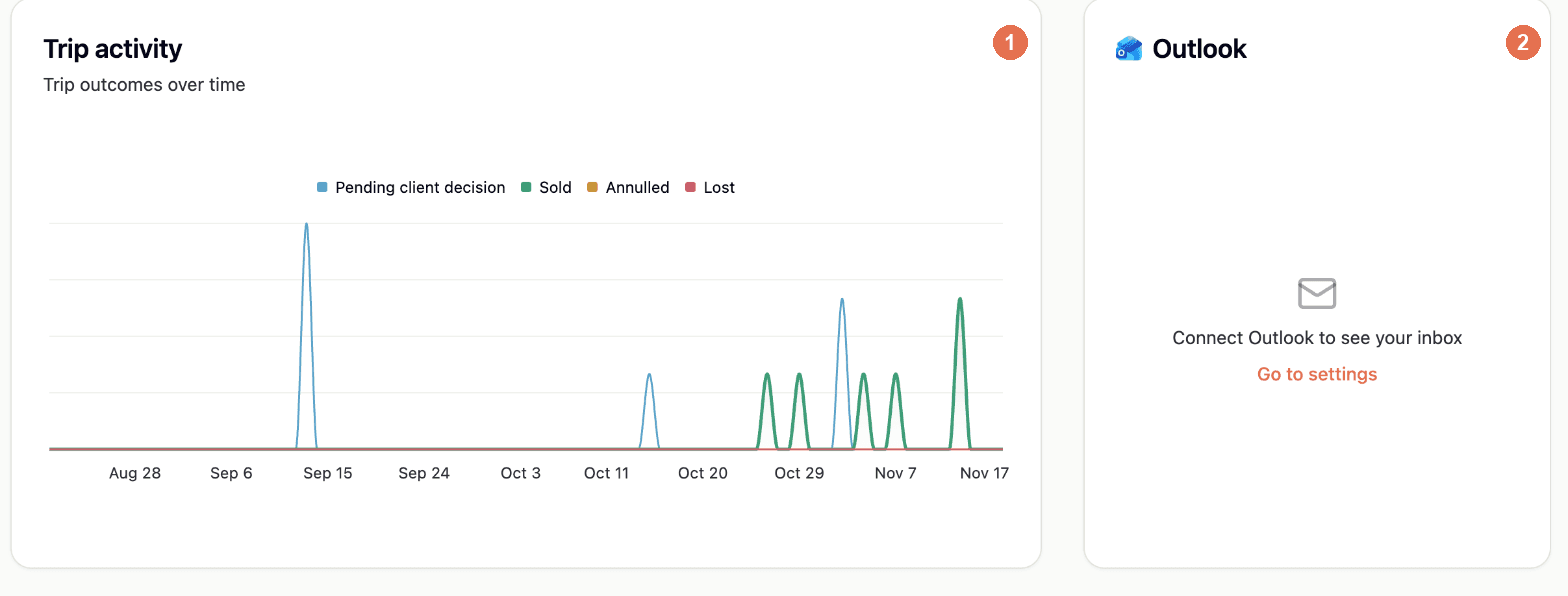
The chart (1) shows trip outcomes over time: pending client decision, sold, annulled and lost. Use the range selector at the top of the page to change the period:
| Range | What it shows |
|---|---|
| Last 7 days | Activity over the past week |
| Last 30 days | Activity over the past month |
| Last 3 months | Activity over the past quarter |
| All time | The full history of the workspace |
The range also applies to the pipeline cards and the recent trips table.
Outlook Inbox
Next to the chart, the Outlook panel (2) shows your inbox so you can work from client emails without leaving Ghloria. You can pick a folder, search, and refresh. Click an email to preview it, then use Import to proposal to bring its content (including attachments) into a new or existing proposal.
If Outlook is not connected, the panel offers a link to Settings to connect it.
Recent Trips
The Recent Trips table shows the latest trips you have worked on, with the title, client, agent, destination, status, dates, number of proposals, and amount.
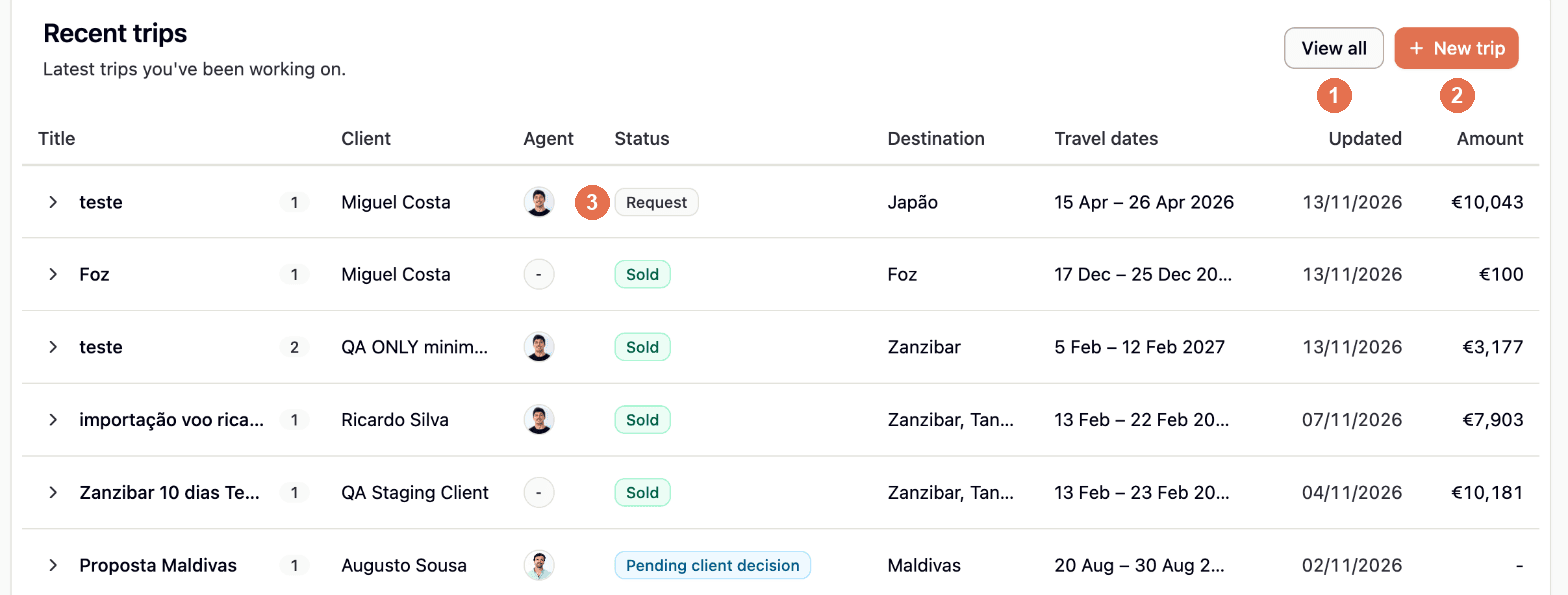
- View all opens the full trip list.
- New trip starts a new trip.
- Click any row to open the trip. The number next to a title is how many proposals it holds.
Filtering by Agent
Users who can view the team see an agent filter. Select an agent to scope the cards, chart, and recent trips to that person's work. Clear the filter to return to the full workspace view.
Other users automatically see only their own trips and proposals.
Empty and Error States
- A new workspace with no trips shows an empty state instead of the cards and chart. Create a first client, trip, and proposal to populate it. Your To do card still appears.
- If the dashboard cannot load, you will see a retry prompt. Your work is not lost.
Next Steps
- Click a trip row to open that trip
- Open Tasks in the sidebar for the full task list
- Open Proposals to create or manage proposals
- Open Clients to manage the client directory