

Company Settings
Configure your company details, brand, contact records, and defaults, plus your personal profile, notifications, and security in Ghloria.
Settings has four tabs: Profile, Company, Notifications, and Security. The Company tab is where Managers set the company details, brand, contact records, and defaults that flow into proposals and exports. It is scoped to the active company.
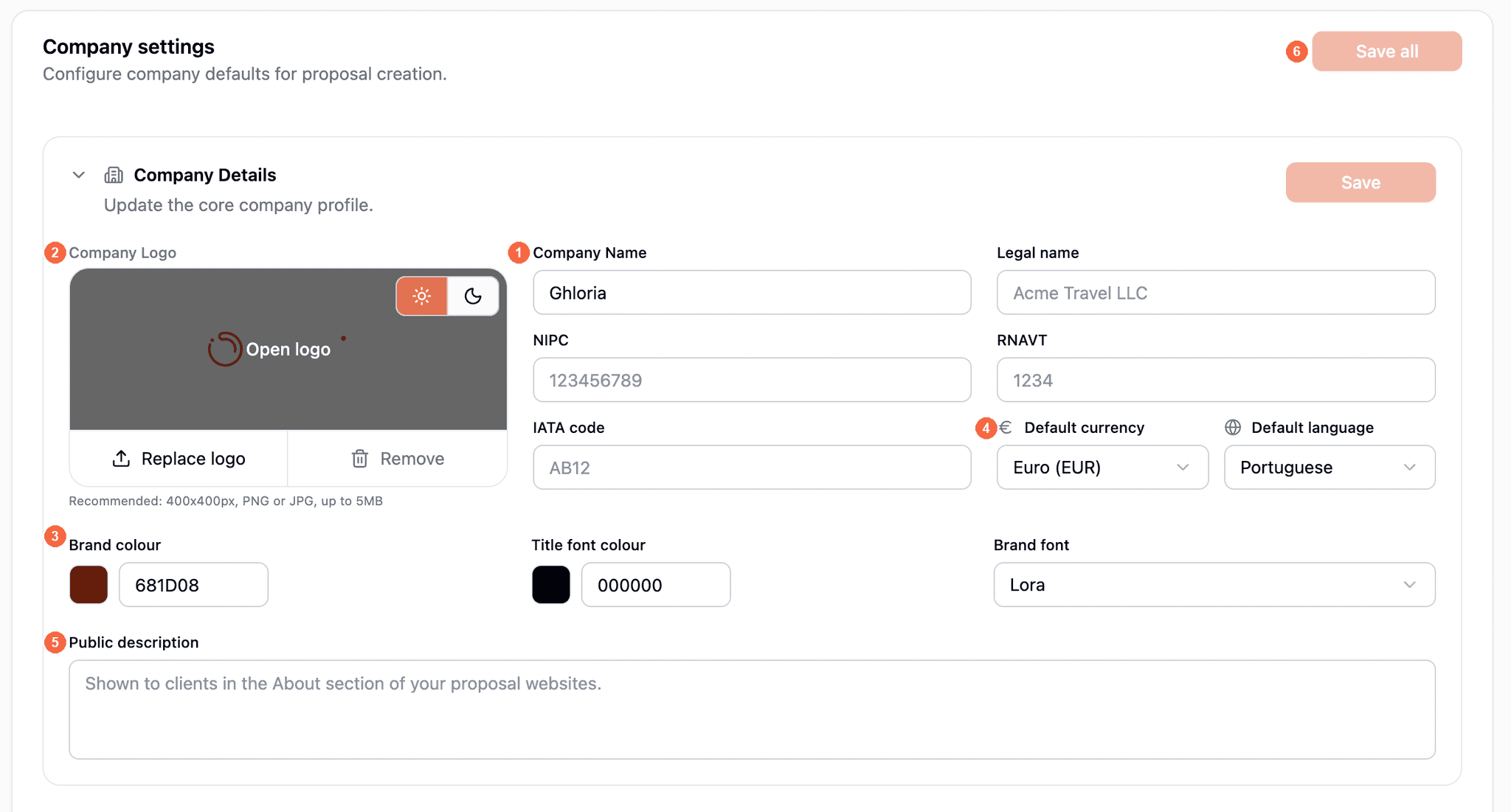
- Company details: name, legal name, NIPC, RNAVT and IATA code
- Logo, with a sun and moon toggle for light and dark backgrounds
- Brand: colour, title font colour and brand font
- Defaults: currency and language for new proposals
- Public description, shown on your proposal websites
- Save all, which saves every change on the tab together. Each section also has its own Save
Manager access
The Company tab is only visible to Managers. Every user can edit their own Profile, Notifications, and Security settings.
Company Details
| Field | What it's for |
|---|---|
| Company Name | The agency trading name, used across proposals and exports |
| Legal name | The registered legal name |
| NIPC | Tax identification number |
| RNAVT | Portuguese travel agency license number |
| IATA code | The agency's IATA accreditation code, if applicable |
| Public description | Shown to clients in the About section of your proposal websites |
Public description is client-facing
Write the public description for your clients. It appears on your proposal websites, so do not use it for internal notes.
Logo and Brand
| Field | What it's for |
|---|---|
| Company Logo | Appears on proposals and presentations. Recommended: 400x400px, PNG or JPG, up to 5MB. Use the sun and moon toggle above the logo to set the version for light and dark backgrounds |
| Brand colour | Primary accent colour used in generated documents |
| Brand font | Typography used in generated templates. Choose None to clear it |
| Title font colour | Colour of titles in generated documents |
Defaults
| Field | What it's for |
|---|---|
| Default currency | Pre-filled currency on new proposals |
| Default language | Language used for generated document content |
These defaults can be overridden per proposal but set the starting point for all new work.
Contact Records
The company holds structured contact records, each with its own Add button and an empty state until you create one.
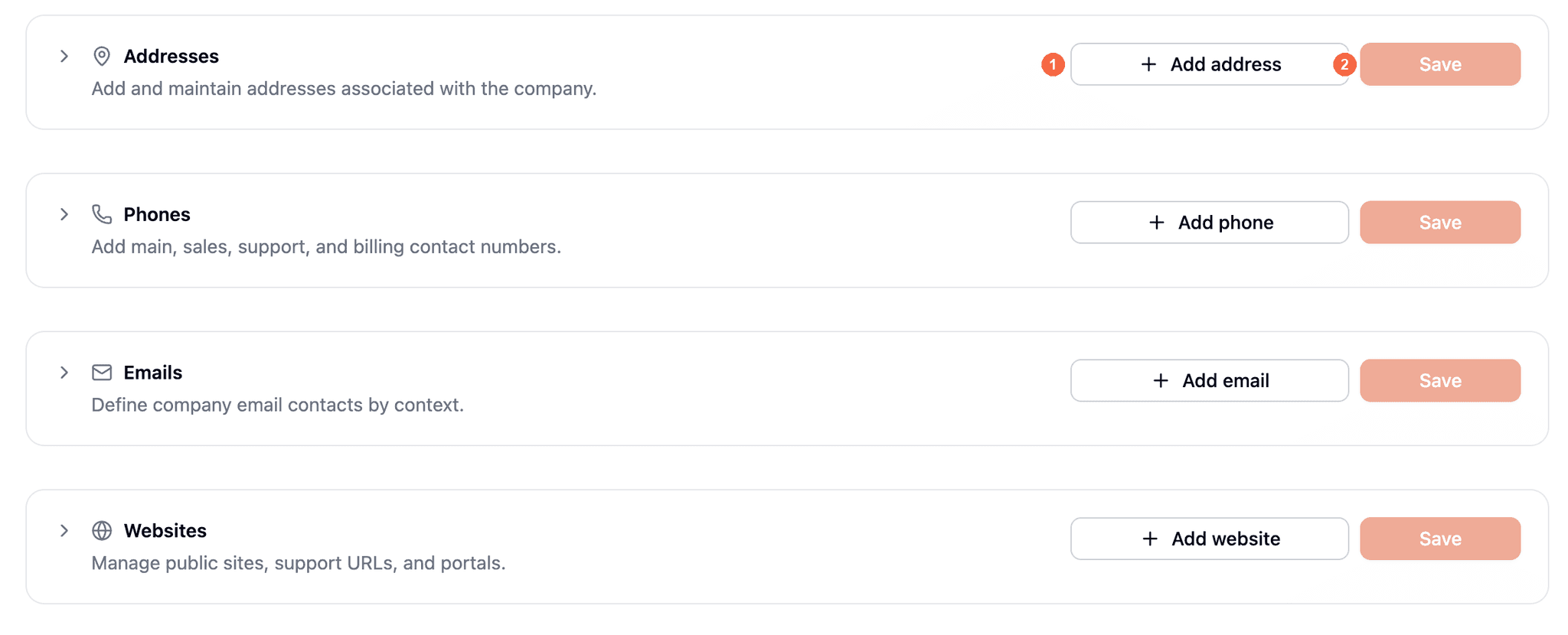
- Add, to create a new record in that section
- Save, to save that section on its own
Add one or more addresses (country, address lines, postal code, city, state/region, district). Mark one as Primary.
Add phone numbers with country code, national number, and extension. Mark a number as Primary and flag numbers that use WhatsApp.
Add email addresses by context, such as general, bookings, or finance. Mark one as Primary.
Add public sites, support URLs, and portals.
Each record can be labelled, typed, edited, and deleted. Deleting asks for confirmation and cannot be undone.
Saving Changes
Each section has its own Save, and Save all at the top saves the company details, logo and brand settings, defaults and any changed contact records together. The buttons are only enabled once you change something; until then the current data is already saved.
Team Management
The Company tab also contains Team Management, where Managers invite and remove members. See Inviting Team Members.
Your Personal Settings
These tabs are available to every user and are separate from the company settings.
Profile
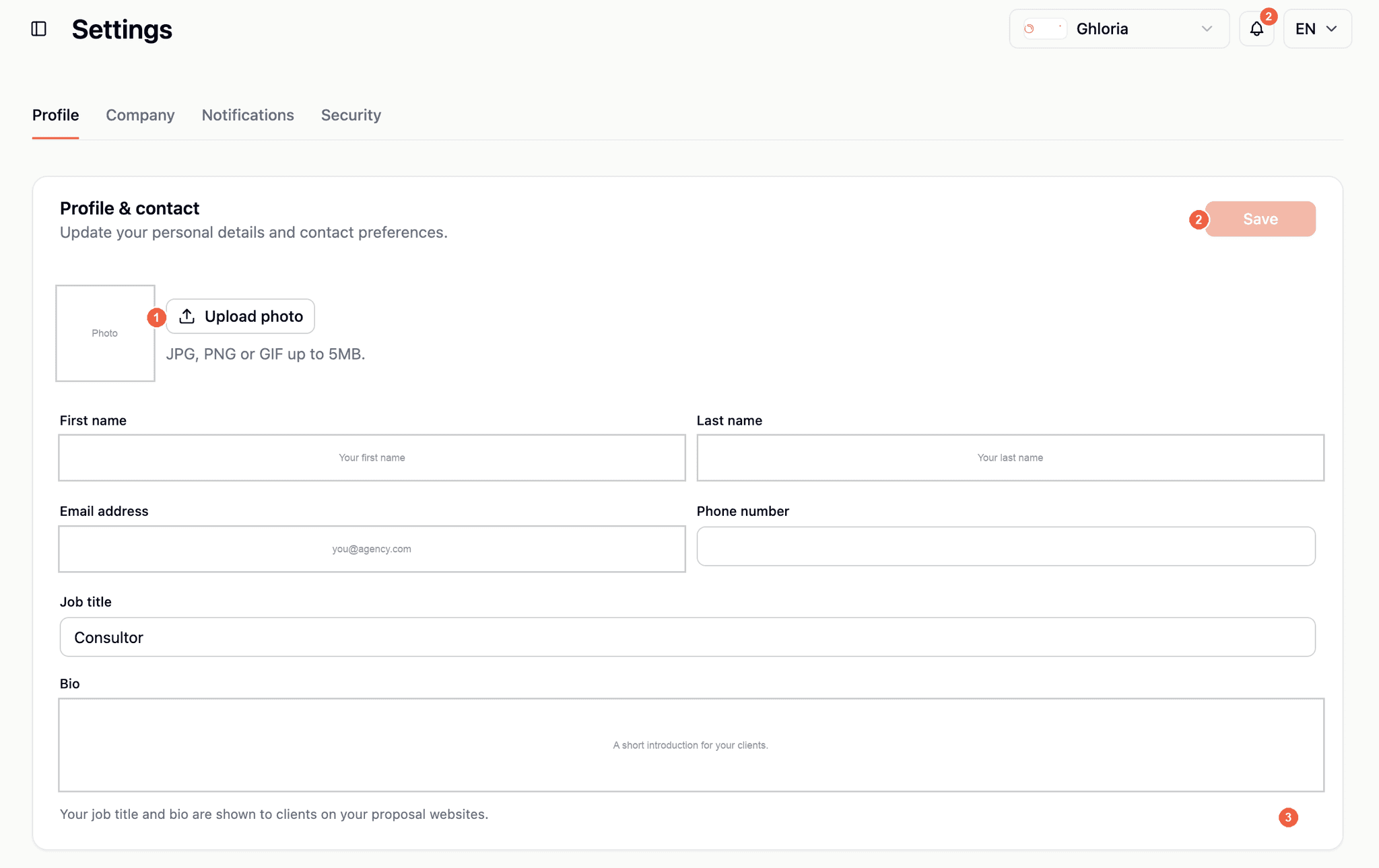
- Upload photo: JPG, PNG or GIF, up to 5MB
- Save, which becomes active once you change something
- Job title and Bio, which clients see on your proposal websites
The Profile & contact card holds your photo, first and last name, email address and phone number, plus your job title and bio.
Clients see your job title and bio
Your job title and bio are shown to clients on your proposal websites. Write them for clients.
Below it, the Profile tab also has two more cards:
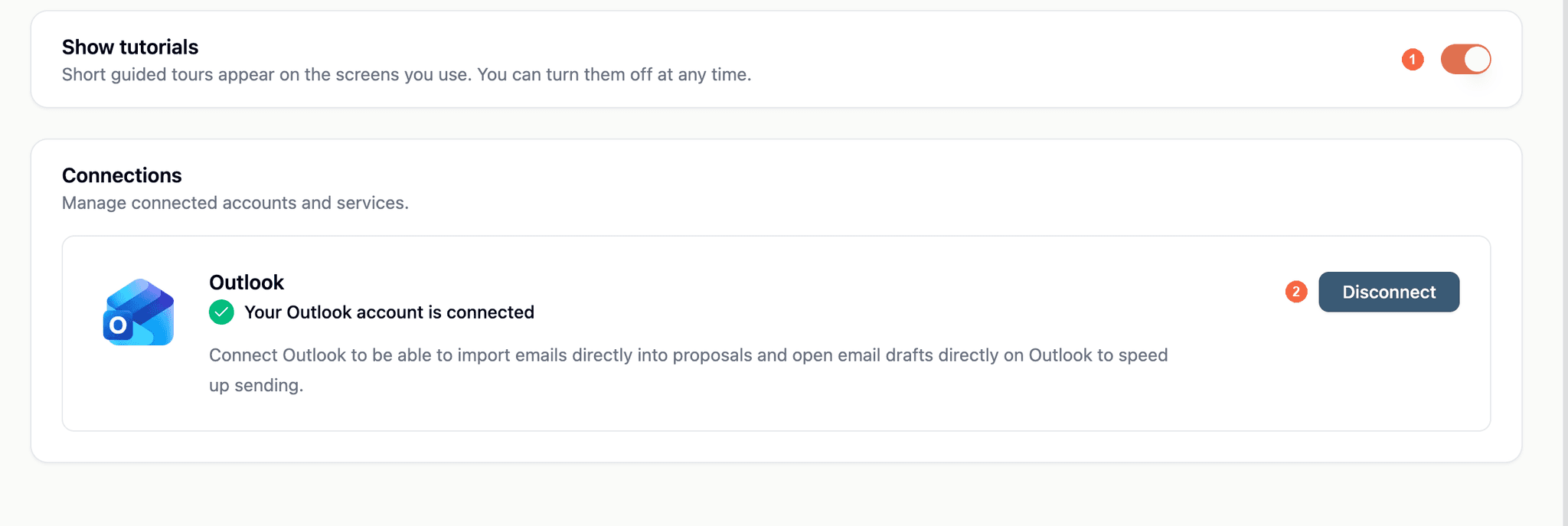
- Show tutorials: short guided tours appear on the screens you use. Turn them off at any time.
- Connections: connect your Outlook account to import emails directly into proposals and to open email drafts in Outlook. The card shows Your Outlook account is connected, with a Disconnect button.
Notifications
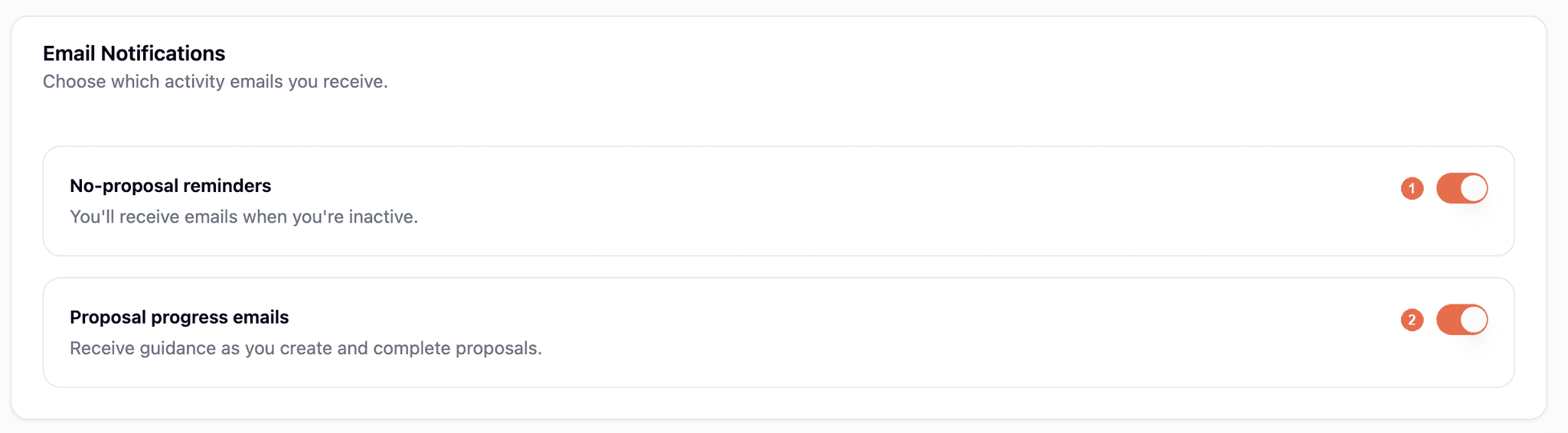
Choose which activity emails you receive:
- No-proposal reminders: emails when you've been inactive.
- Proposal progress emails: guidance as you create and complete proposals.
Security
Change your password.