

Build a Proposal
Itinerary
How to build the day-by-day itinerary inside a proposal.
The itinerary keeps the daily plan of a proposal clear and structured, and feeds the client-facing exports.
Itinerary tab
Open the Itinerary tab to build the day-by-day plan. Choose how you want to write it:
| Mode | Each day has |
|---|---|
| Decompose | A title, then separate Breakfast, Morning, Lunch, Afternoon, Dinner, and Overnight entries, plus Internal Notes that clients never see |
| Descriptive | A single free-flowing Description for the day. Use Regenerate Narrative to rebuild it from the decomposed entries |
You can switch between the two at any time, and Ghloria tries to keep your changes in sync.
Building the days
- Sync with Dates creates one day per trip date, using the trip's start and end dates from the editor header. If days already exist, Ghloria asks before replacing them.
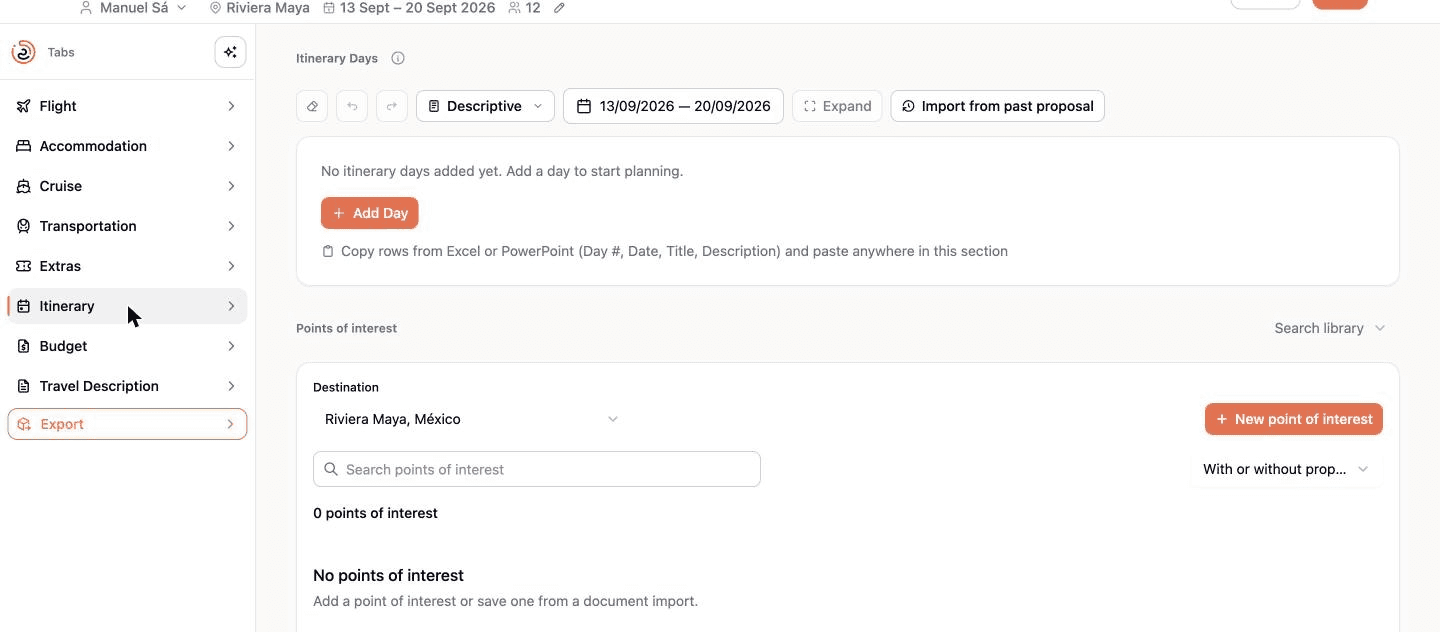
- Add Day adds a day manually, and you can delete a single day or all days. Undo and Redo are available.
- Paste rows copied from Excel, Word, or PowerPoint tables (for example Day, Date, Title, Breakfast…) straight into the table to bring existing agency material into structured fields.
- Import a whole itinerary from a supplier document. See Using AI Document Import & GDS.
- Cruise days: when the proposal has a cruise, the days within it show a ship icon. Click it to set the Port, Disembark hour and Embark hour for that day. See Cruises.
- Import from past proposal copies the itinerary of an earlier proposal into this one, so you can reuse a day plan that worked.
- A new, empty itinerary shows the trip dates and There are no itinerary days yet. Add a day to start planning. Click Add Day to begin. You can also copy rows from Excel or PowerPoint (Day no., Date, Title, Description) and paste them anywhere in the section.
Points of interest
Below the days, the Points of interest panel is your library for the trip's destination.
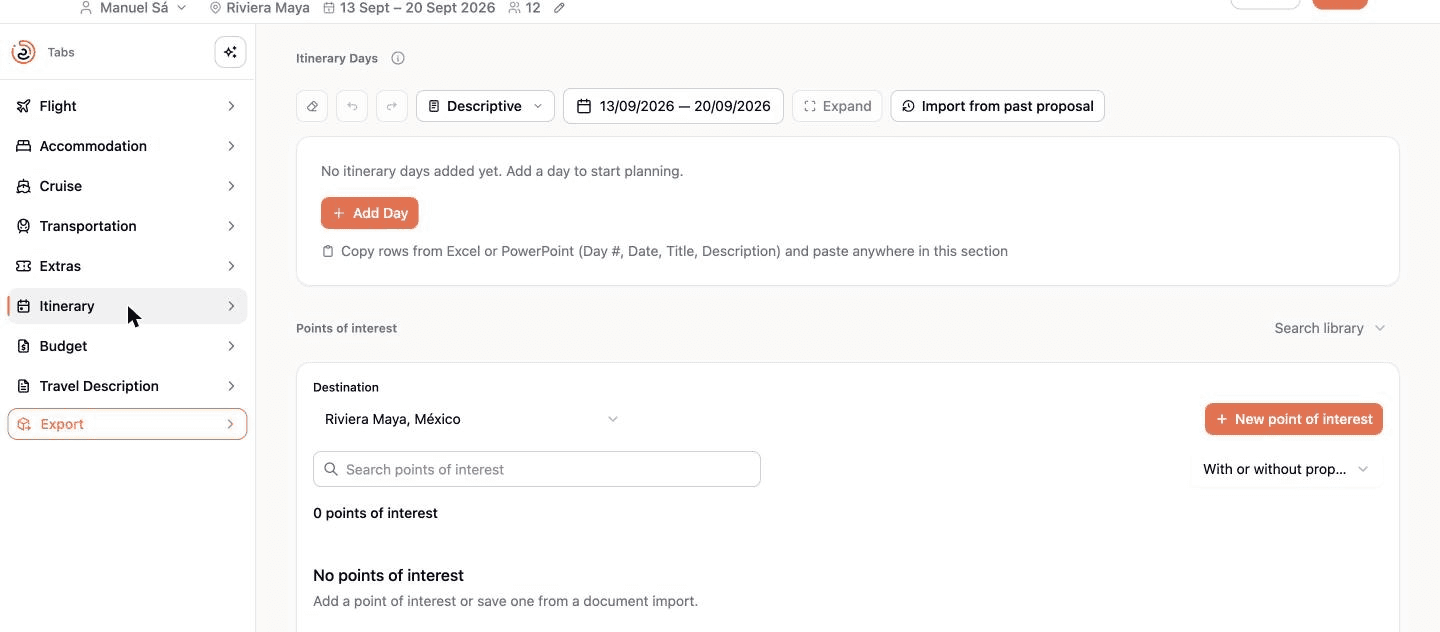
- Type in Search points of interest to find a place.
- Narrow the list with Destination (the proposal's destination is preselected) and with the With or without proposals filter. Used in proposals shows places your agency has already used.
- The counter shows how many points of interest match. Click one to open its details in a new tab.
- Click New point of interest to add a place that is missing. It is saved in the destination's library, together with anything you save from an import.
To put a place on a day, choose the day and whether it goes in the morning or afternoon. See Points of Interest.