

Advanced Pricing: Scenarios, Groups and Options
Price one proposal for several group sizes, split costs between traveler groups, or offer the client a choice of options.
Most proposals only need the Budget basics. Come here when one price is not enough: the group size is not final, several parties share a trip, or the client should choose between alternatives.
Choose the structure
Open Budget structure at the top of the tab. It has two selectors that answer two different questions:
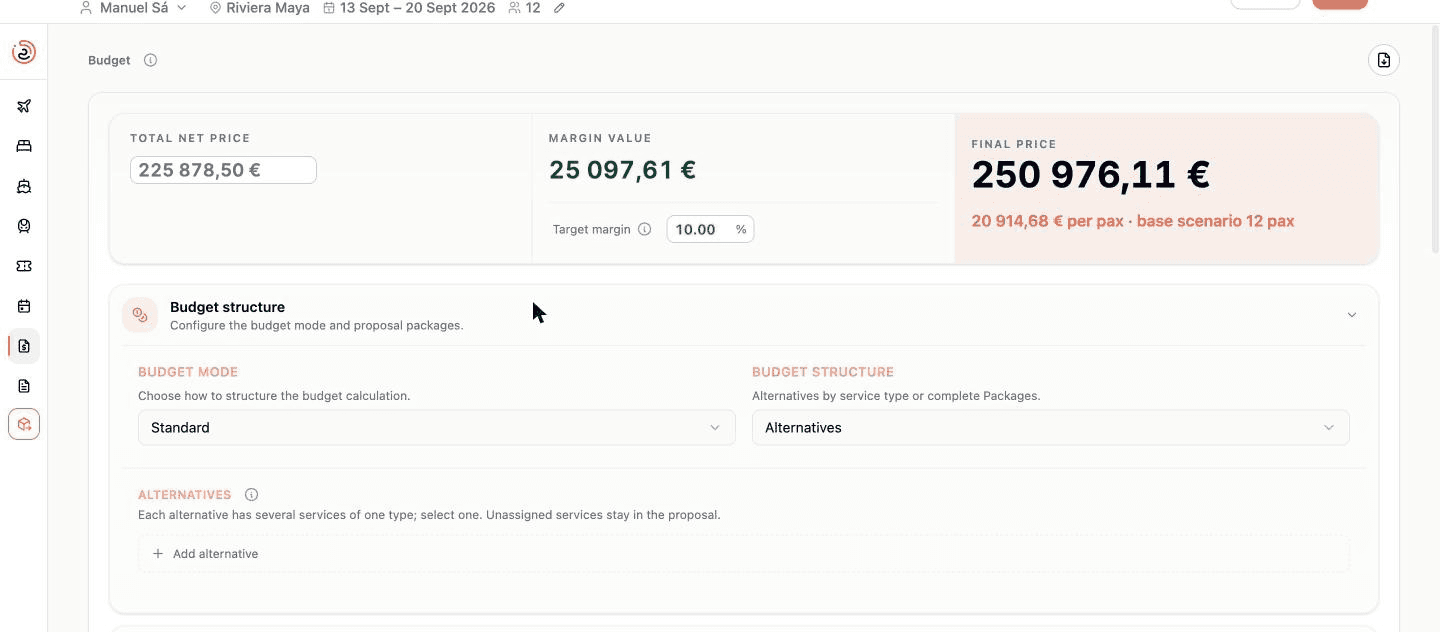
| Selector | Question it answers | Choices |
|---|---|---|
| Budget mode | How is the price calculated? | Standard, Pricing Scenario, Groups |
| Budget structure | How does the client choose between offers? | Alternatives, Packages |
Choose one of each. The mode and the structure are independent, and the choice applies to the whole proposal: the PDF, PowerPoint, email and proposal website all present the same budget.
Budget Mode
- Standard: one budget for everyone. This is the default and is right for most proposals.
- Pricing Scenario: the same trip priced for different numbers of travelers.
- Groups: one trip split between traveler groups who pay different amounts.
| You want to… | Use |
|---|---|
| Quote a group trip for 10, 20 or 30 people before the group size is confirmed | Pricing Scenario |
| Show two families travelling together what each one pays | Groups |
| Quote one price for the trip | Standard |
Scenarios and groups don't mix
A budget uses either pricing scenarios or traveler groups, not both. Switching from one to the other removes the current scenarios or groups and their assignments. Ghloria asks for confirmation first.
Budget Structure: Alternatives Or Packages
The structure decides what the client is choosing between.
| Alternatives | Packages | |
|---|---|---|
| What the client chooses | One service out of several of the same type | One complete offer made of several services |
| Typical use | Three hotels in Lisbon: the client takes one | A "Classic" and a "Premium" version of the whole trip |
| What it holds | Services of a single type (accommodation, flights, cruises, transportation or extras) | Any mix of services |
| Services you leave out | Stay in the proposal | Are shared by every package |
Alternatives
An alternative holds services of one type, such as three hotels in Lisbon, where only one can be selected. The selected service counts in the budget. Select another and it replaces the first.
Example. The alternative Hotel in Lisbon holds Hotel A, Hotel B and Hotel C. Select Hotel B and only Hotel B counts. Select Hotel C and it replaces Hotel B.
Create the alternative
In Budget structure, click Add alternative. Give it a name, such as "Hotel in Lisbon" or "Flight to Rome", and choose its service type.
Assign the services
In the Budget table, use the Alternatives column to put each service in its alternative. Only alternatives of the service's own type are offered.
Choose the default
Set the service that should count to Optional · Selected in the Proposal status column, and leave the others in the alternative as Optional · Not selected. Leave at most one service selected in each alternative before you save. The client can switch to another one on the proposal.
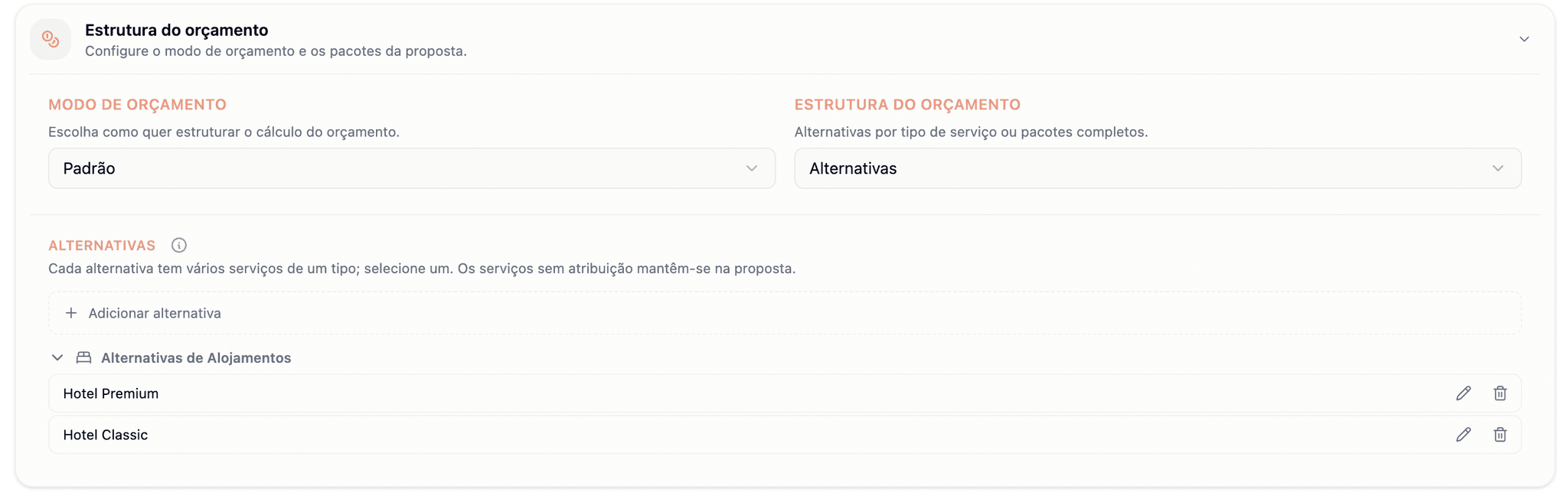
Create one alternative for each choice you want to offer. The selected service of each alternative counts together, and services in no alternative stay in the proposal.
- A service belongs to one alternative or to none. A service in no alternative is not part of any choice: it can be Base, or optional on its own.
- A service in an alternative is always optional. In each alternative, one service is Optional · Selected and the others are Optional · Not selected.
- Base services can't be part of an alternative.
- You can't change an alternative's service type until you remove its assigned services.
- The client makes this choice on the proposal website and in the exports. See Proposal website.
Alternatives are single services
An alternative is always one service or the other, such as one hotel or another. To offer the client a complete, different version of the trip, use Packages.
Packages
A package is a complete budget choice for the client. Packages were previously called options.
Create the package
In Budget structure, click Add package and give it a name.
Assign the services
In the Budget table, use the Packages column to put each package-specific service in its package. Services not assigned to a package are Shared by every package.
Select the package that counts
Click the star on a package to make it the one that counts in the budget. Its services are counted alongside the shared ones. The services of other packages are not.
- The assignment only decides which package contains a service. It never changes the service's price, quantity or markup.
- A parent service owns everything inside it: a hotel's rooms can't sit in a different package from their hotel.
- Each package's total is the shared services plus its own, with the proposal's discounts applied.
- The Packages view compares the packages side by side. With Pricing Scenario you get a matrix of packages × headcounts.
- Removing a package sends its services back to the shared budget.
Imported packages are different
In the Imported Packages section of the budget, a "package" is a supplier document that is itself a priced offer. That is not the same as a budget Package above.
Which Combinations Are Available
| Budget mode | Alternatives | Packages |
|---|---|---|
| Standard | Yes | Yes |
| Pricing Scenario | Not available: scenarios price complete packages. Your saved alternatives are kept | Yes |
| Groups | Yes | Yes |
Changing the mode or the structure never deletes your scenarios, groups, alternatives, packages or their prices. You can switch back and your work is still there.
When several things are active at once:
- A selected package wins over a scenario. With a package selected, the totals use the package's Base prices. Only the packages × scenarios matrix combines the two.
- A manual Net price applies to the whole trip. It is disabled while a package is selected, and applies again when no package is.
- A service tick is shared. Unticking a service in Base or in any scenario unticks it everywhere. To leave a service out of one offer, use a package.
Pricing Scenarios
A scenario prices the same services for a different headcount. Add one with Add scenario, with a name and a number of travelers. The name is optional: without one, the scenario is called "N pax". Each headcount can only exist once, and it can't be the base proposal's headcount.
For each scenario:
- Unit lines are recalculated for the scenario's headcount.
- Total lines stay the same, so fixed costs such as a coach or a guide are spread over more or fewer people.
- You can type a different net price on a line for that scenario only. Its markup still applies. A line you edited this way can be put back with Reset to automatic.
- Which lines are included, and the row structure, come from the base budget. To add, remove or reorder rows, switch back to Base.
- A scenario with no priced rows is worth zero.
Example. A coach costs €1,200 (Total) and a dinner costs €40 per person (Unit). For 10 travelers that is €1,200 + €400 = €1,600, or €160 per person. For 20 travelers it is €1,200 + €800 = €2,000, or €100 per person.
The Pricing Scenario summary card shows each scenario next to the base proposal, with net, margin, total and per-person price. Click the star on a scenario to make it the current one and the table shows its prices.
Traveler Groups
Use groups when the same trip has different prices for different parties. Add groups with Add groups, each with a name and a number of adults and children.
- In the Assignment column, assign each line to All or to a specific group. A parent whose children have different assignments shows Varies.
- Lines assigned to All are shared between groups by headcount. Shared room and cabin costs are split evenly between the groups in them.
- The allocation check shows whether every traveler is in a group: Allocation balanced, Allocation incomplete (travelers not yet in a group) or Allocation exceeds trip size.
Removing a group sends its lines back to All participants.
Troubleshooting
Budget Basics
A practical guide to the Budget tab: how prices flow in from your services, how to set costs, markups and margin, and when to use scenarios, traveler groups, alternatives and packages.
Exporting and Sharing Proposals
The export panel: a shared image gallery, branded emails, PowerPoint decks and proposal websites, in five languages, all generated from the same proposal data.